Portal Colours/Branding
There are a few colours that you are able to change for the family view.
The background
This DOES NOT include the entire background. The sections where the family enter their data will remain white for clarity. But this does allow you to have the predominant office/company colour subtly displayed.
If your linked company logo has a non white background, and is going to be used in the title section of the family’s view, then you will have to change the background colour to get your logo to nicely blend in.
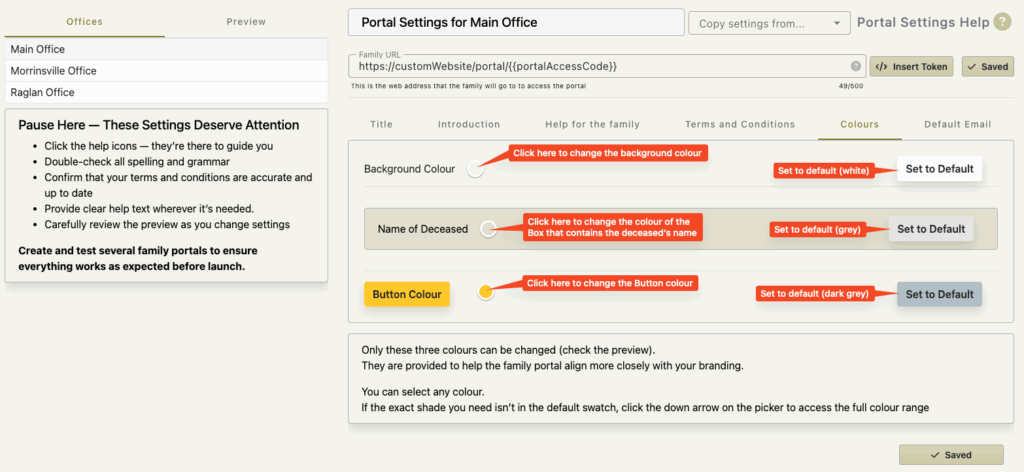
- Goto the Colours tab in the portal settings.
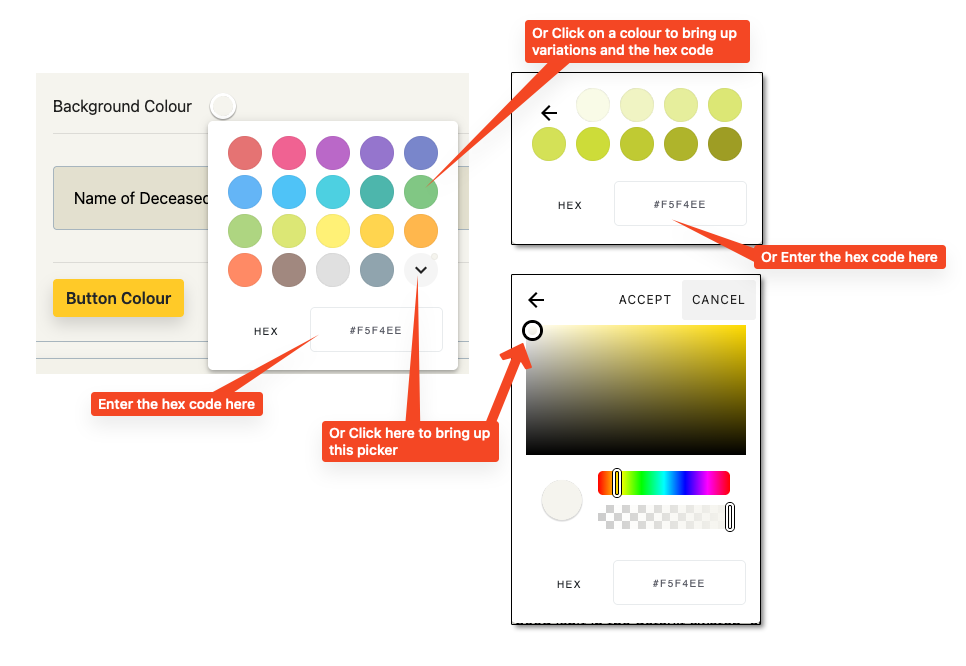
- Click on the round colour swatch next to the ‘background Colour’ label and choose the colour you wish.
- Click Save.
Your will see the change made immediately in the preview and in the area used to set the colours.
NOTE
If you wish to have a dark coloured background you may have to set the title text and the introduction text to white.
Deceased’s Name box
This is the box that surrounds the deceased’ persons name situated between the top title and the introduction. This is also to assist you with a specific branding appearance.
Your will see the change made immediately in the preview and in the area used to set the colours.
Buttons
These are any of the buttons in the interface that the family will see.
There are a few – these are for adding children, adding relationships etc.
Your will see the change made immediately in the preview and in the area used to set the colours.
Setting a very specific known colour
This may help with using the colour pickers.