Disbursements
This holds true for an ‘Invoice’ or ‘Estimate’ and these terms in the text are interchangeable .
Disbursements are those expenses on the invoice that have been provided by a third party.
These are likely to include…
- Cremation or burial fees
- Flowers
- Newspaper notices
- Death certificates
- etc
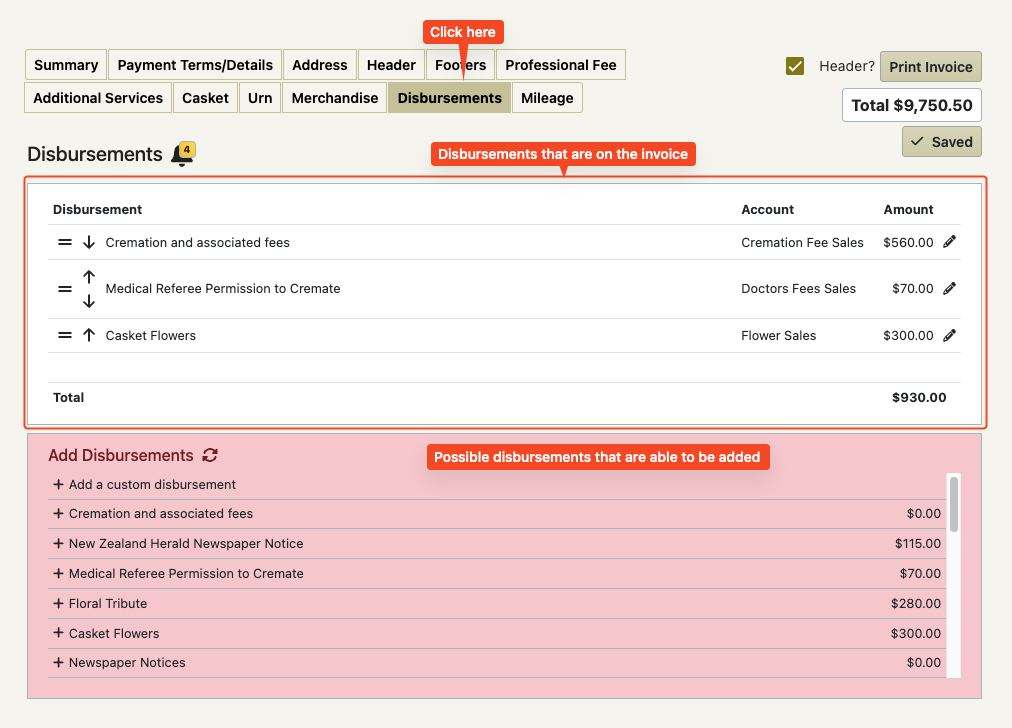
This screen also has invoice reminders on it
To add a Disbursement
Your FreeDAM settings provide the pink list with your options and prices.
Note that these can use codewords that get translated to real case data.
Click on a line in the pink list.
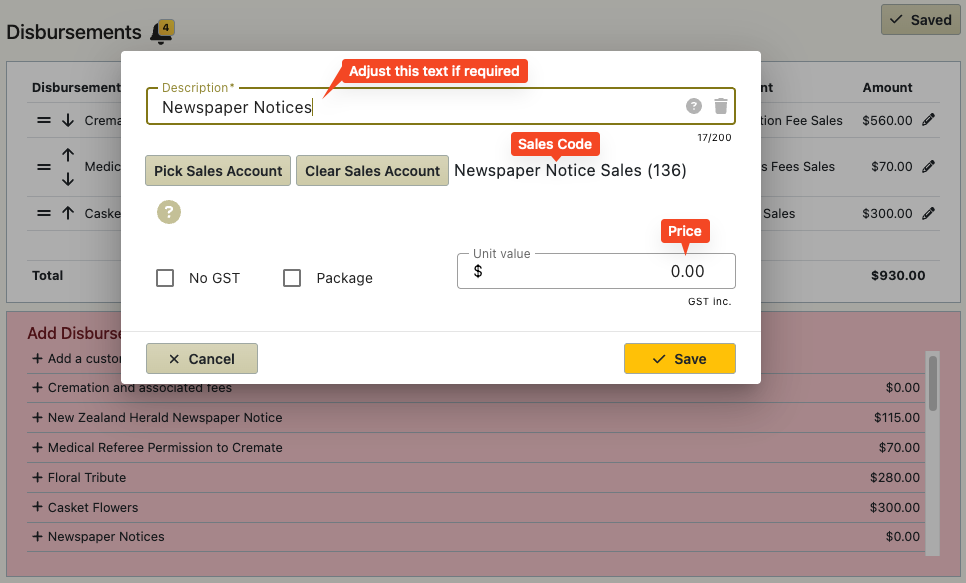
A pop up box will appear.
If required, Change the text, sales code or price and click ‘Save’
The disbursement is added to the invoice.
No GST Disbursements!
In New Zealand we generally do not add GST to a disbursement if the provider of the goods/services is not GST registered.
These are usually…
- Celebrants
- Organists
- Pipers
- Buglers
- Church Hall fees
- etc
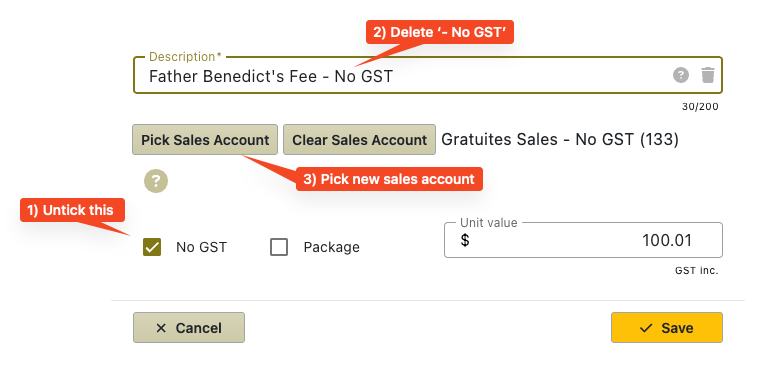
If you are adding a disbursement that does not contain GST then the sales account should be set to a No GST sales account.
Common Items in the pink list that do not contain GST are usually marked by ‘- No GST’ at the end of the item.
Be careful!
Most Celebrants are not GST registered – but some are.
You will need to know which ones are, and adjust the sales code accordingly.
This is done in the disbursement pop up box.
Sub disbursements
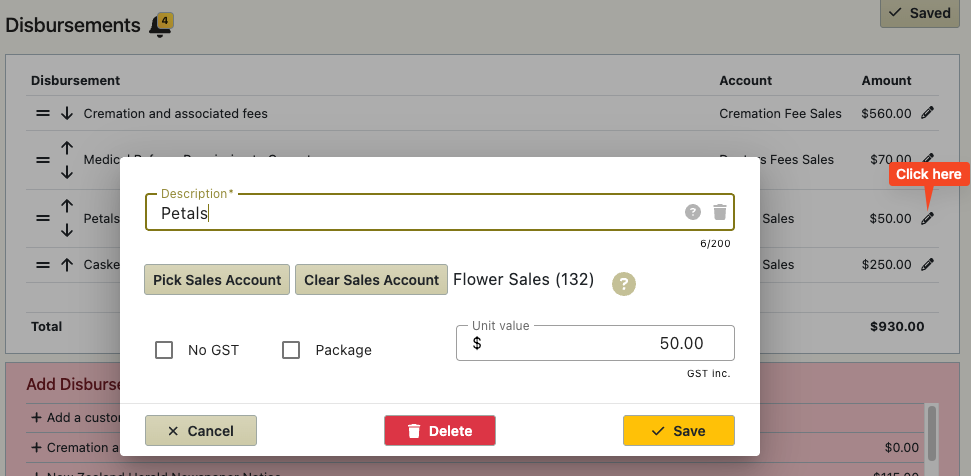
FreeDAM allows you to have disbursements in your pink list that have a way of picking additional items within the main disbursement.
If your company are using these then they will be set up for you.
Here is an example…
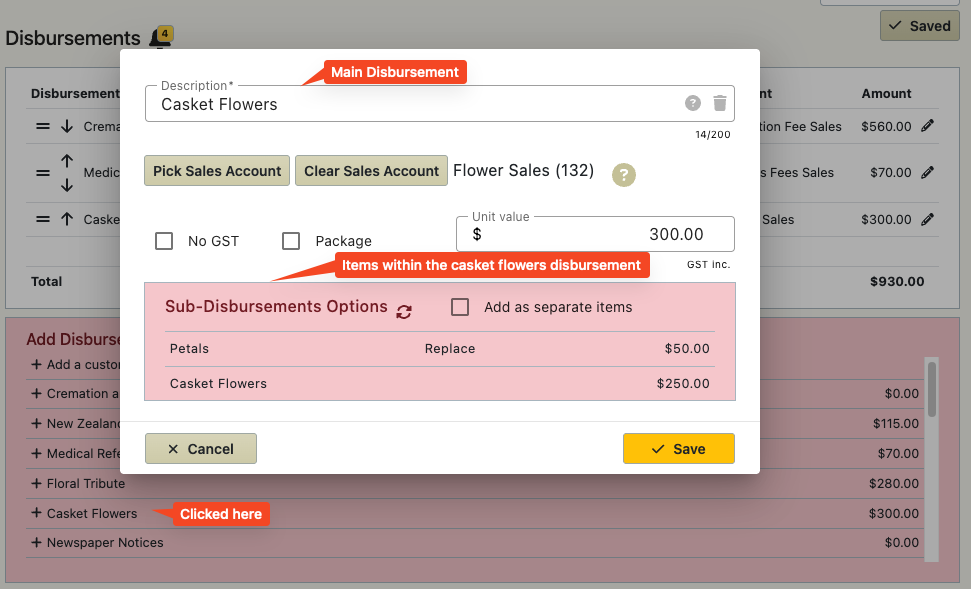
When ‘Casket Flowers’ is selected you are able to just save these with a price of $300.00 or you could click on the ‘Casket Flowers’ sub disbursement which would change the price to $250.00
This allows you to have one disbursement item with many price options.
in the above example if you choose the ‘Petals’ from the pink list then because this has been set to ‘replace’ the description the result would be a disbursement for ‘Petals’ coded to Flower Sales.
If you select ‘Add as separate items’ then you will get the option to add one or as many as the sub disbursements as required to the invoice as individual lines.
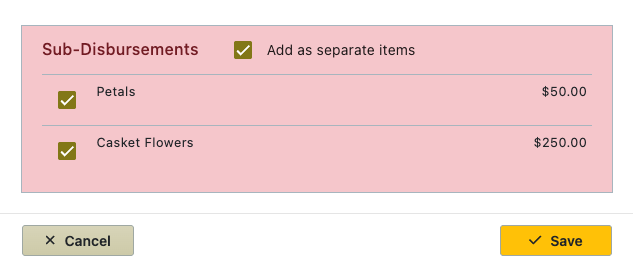
The result of this would be…
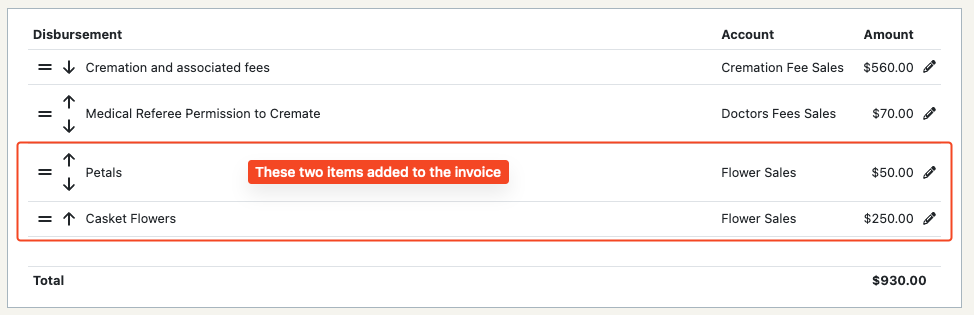
Sub Disbursements (if set up) can make invoicing a breeze and save a lot of time.
Add a disbursement that is not in the pink list
There may be circumstances where you may have to do this.
Click on the top ‘+ Add a custom disbursement’ line in the list.
A pop up box will appear.
Enter the description and the price.
IMPORTANT – click the ‘Pick Sales Account’ button and chose the appropriate sales account.
Click save and the disbursement is added to the invoice.
Pink List Behaviours
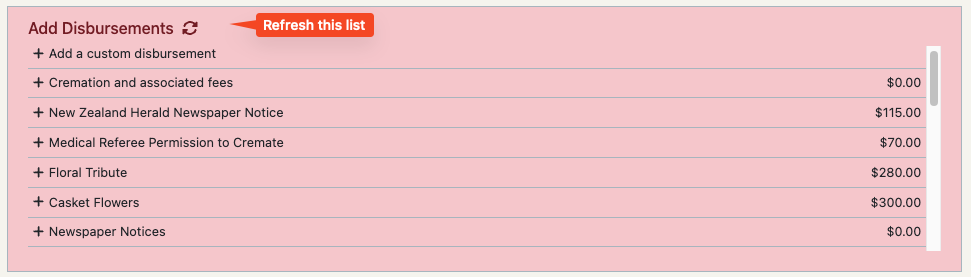
The pink list will always have the ‘ + add custom disbursement’ at the top but as you click on items in the list all the other lines above the one you clicked will disappear. This allows you to work from the top of the list down with out having to scroll – skipping over items that do not apply to the case.
If you need to bring items no longer in the pink list back again click on the refresh icon at the top of the pink list.
Reordering disbursements in the White List
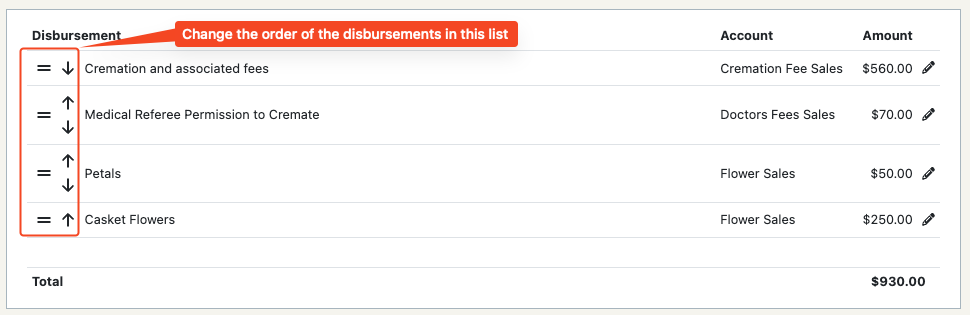
The items in the white list are the disbursements that will appear on the invoice in the order that they will be printed.
You are able to change the order of these items by dragging and dropping them within the list or using the up and down arrows.
Deleting/Editing Disbursements
When you click on the pencil icon at the far left of the disbursement (white box) then a pop up box will appear that will allow you to edit the disbursement or delete it.