
Sending the Link to the Family
If you have been working your way from Using the portal to here
then congratulations!
You are now ready to send the family the link to the portal.
Otherwise – please review Using the Portal
Click the Email Portal Details button
This will open FreeDAM’s Email popup box.
This should be familiar to you as it is the same email layout as used elsewhere in FreeDAM.
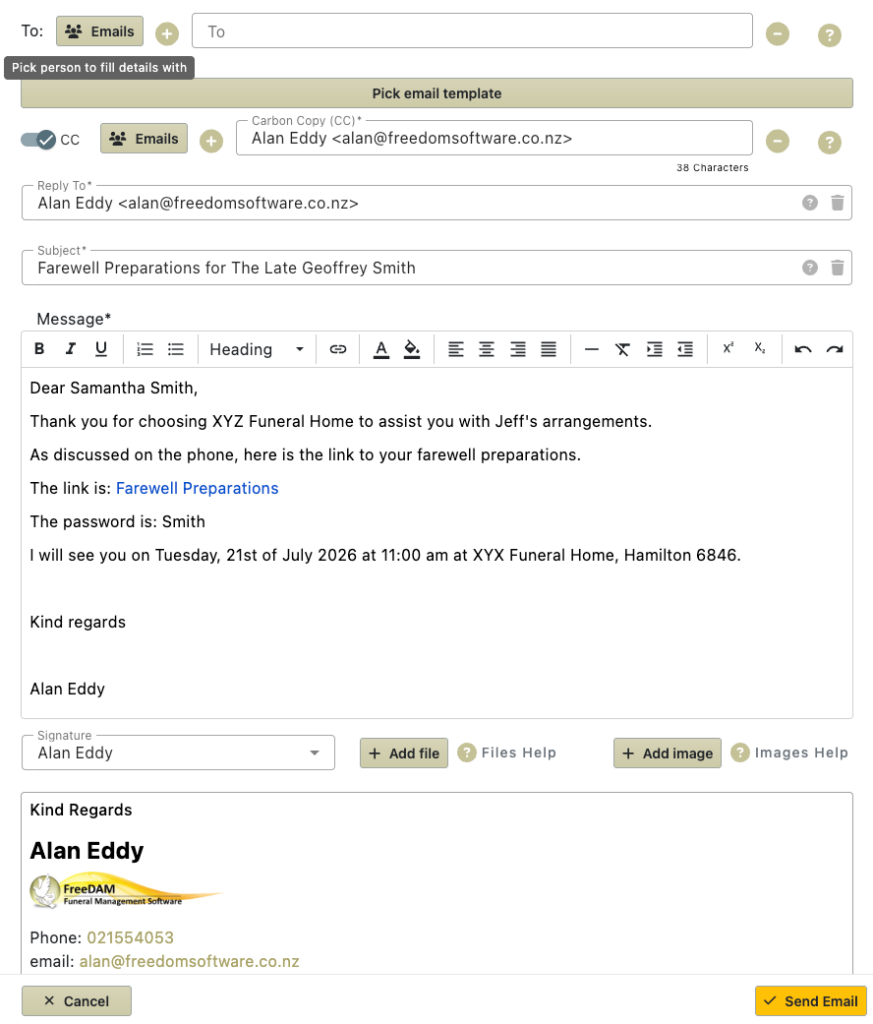
Select the email address of the person you want to send this link to.
Check that the subject of the email is correct
(if not just adjust it)
Check that the body of the email is correct.
This body should contain the link to the portal and the password to use.
The body of the email is set by the portal settings and transferred to the case at the time of code generation.
You are able to add to the body of the email as you need to.
Note that in the example above we would need to fill in the Dear …
This is because that there is no guarantee that we will be sending this email to the next of kin or any other name that is in FreeDAM for this case
(Remember – we have very limited information about the family and the case at this stage)
Change the signature if required.
We set the signature to be that of the current user.
This may not be the arranger – e.g. an admin staff member is sending this email out.
Click Send Email
The email gets sent – the cc address should get a copy and a copy of the email will be saved in the email section of FreeDAM
Can you send the link via your normal email program?
Yes – if you want to.
Just make sure that the link address is correct.