
The Payment Terms
This section is for the overall settings for the invoice/Estimate.
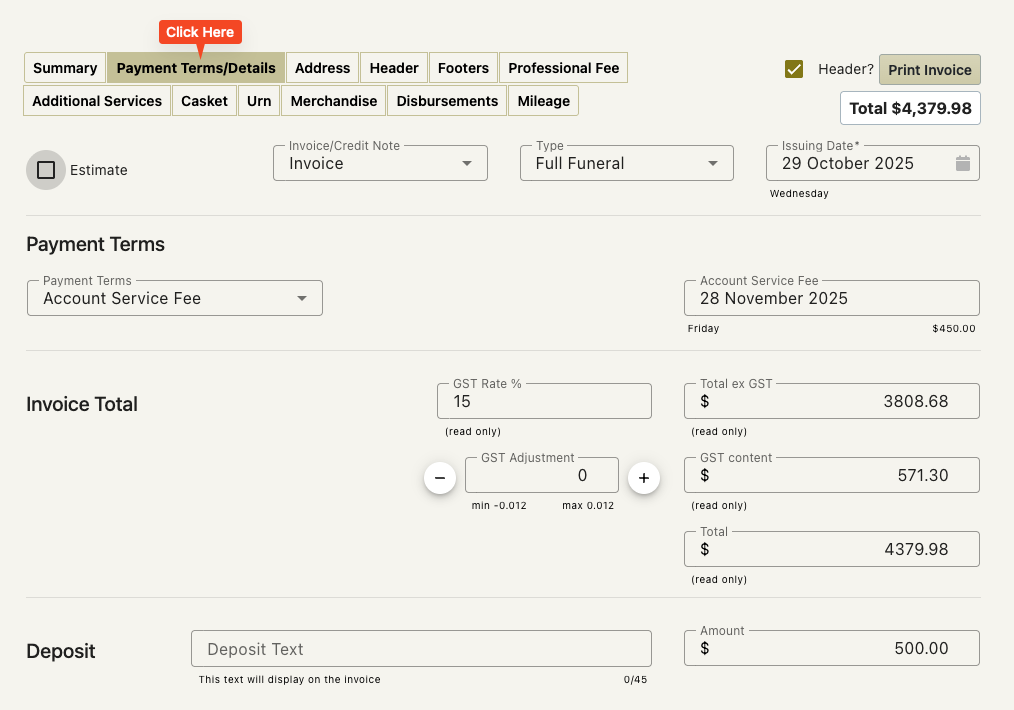
The Estimate Checkbox
If this is an estimate this will be checked
If this is an invoice – checking this box will turn the invoice into an estimate.
Estimates have no payment terms and no ability to add a deposit.
Estimates have an issue date
Estimates have a ‘Valid until Date’
This date is not often used – it may or may not show on your printed estimate.
This date has no other impact on the estimate – it is just there if the company wants to make your estimates time limited.
Invoice/Credit Note
This changes the invoice to a credit note.
A credit note is the opposite of an invoice
Any values are entered as positives (just like an invoice) the fact that it is a credit note will reduce the balance of the account once posted.
Credit notes have a draft and finalised state as well and you can post credit notes in the same way that you post invoices – with the same results.
Credit notes are used when an invoice has gone out to the family and the family require a reduction of a particular service or product.
Type
Changing this may impact the payment terms and how the invoice appears once printed.
See this section for a description of these.
Issuing Date
This is the date that will display at the top of the invoice.
Often the payment terms are calculated from this date.
Often this is set to be the date the invoice has been created.
If the completion of the invoice has taken several days, this date might be required to be changed before the invoice is sent to the family.
Sometimes it is set to be the date of death of the deceased or some other relevant date relating to the case.
WARNING!
This date might be in the future.
You may have company settings that set this date to be x number of days after the date of death or funeral. This may be done for overall uniformity required by the company in order to send invoices out in a specific time frame.
Payment Terms
This is usually set for you by the company settings but can be adjusted per case.
These are…
Account service fee
Discount
Due by
Changing this value will hide and show dates and discount amounts according to your company settings.
If you change the payment terms adjust the additional values as required.
Invoice total Area
The excluding GST Total, the GST Content and the Total of the invoice are read only fields and will be calculated for you. They display here for your reference.
The GST Rate
This will be set for you via the company settings.
This may be changed if you have permissions to do so – although this is rarely required.
The GST Adjustment
This allows the invoice total to be adjusted by a cent or two.
When an invoice gets pushed to Xero – the total does not get pushed – just the line items. Xero calculates the total and returns it to FreeDAM.
If this total does not match FreeDAM’s total then the invoice will not be pushed to Xero. The reason why the totals may not match is because we may calculate GST on the invoice a different way than Xero does and our totals may not match and be ‘out’ by a cent or two.
This field allows you to adjust the GST value by a few cents.
This field is hardly ever used these days.
Deposit Fields
You are able to display on the invoice any deposit you have received.
This will adjust the amount to pay on the invoice – taking into account the already paid deposit.
This does not reduce the sales value of the invoice.
If you enter an amount in the deposit amount field this will be displayed on the summary screen and the printed invoice with the words ‘Deposit Received’ next to it.
If you enter a value in the Deposit Text’ field then this value will display on the printed invoice.
i.e. ‘Paid by Dean’ instead of ‘Deposit Received’