
Portal Settings
This area is reserved for those who have the overall responsibility for setting up the family portal for the company and offices within the company.
These setting are under ‘Preferences – Company Data – Portal Settings’
You will need to give yourself or a member of the team access to this preference. See Adding New Features for the Team
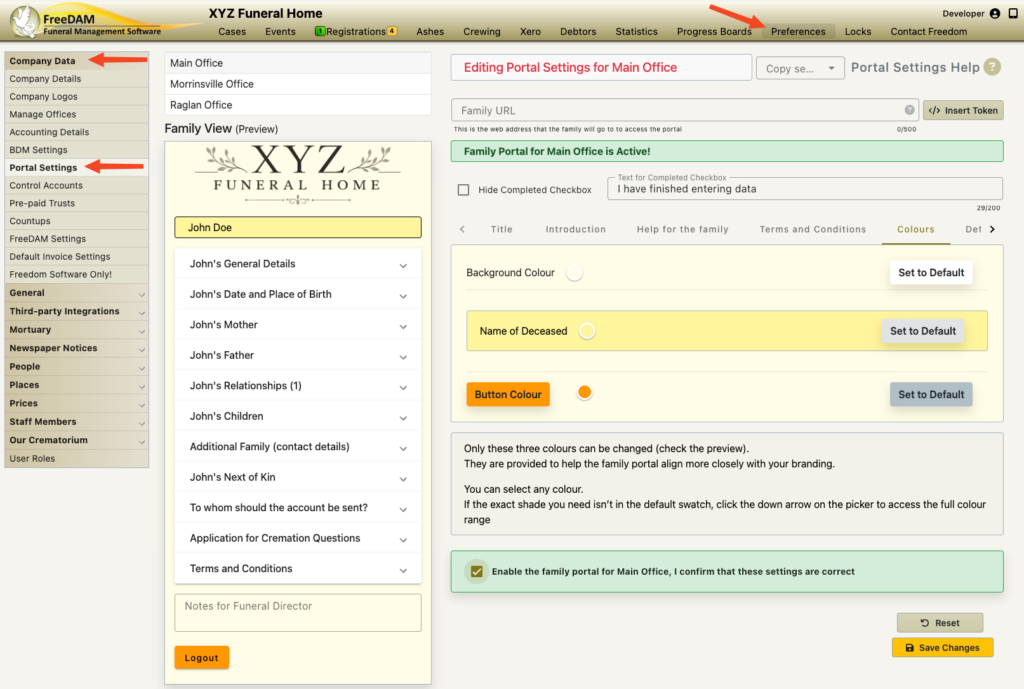
These settings are very important!
The results of these settings will be seen by the grieving family!
A case’s created portal for the family will take on these settings.
Any changes to these settings require a confirmation tick in a checkbox to confirm that the settings are correct.
This enables the family portal – allowing users to create portals.
Each Office is able to have separate portal settings
It may be that you have various ‘offices’ in FreeDAM that have different branding , colours, terms and conditions etc.
Click on each office to adjust the portal settings for that office.
You are able to copy the settings from one office to another office via the drop down list to the right of the office selected.

The Preview
There is a handy preview that will show you how the portal will look to the family. see The Preview
Completed Checkbox and Text
The family are able to indicate if they have completed filling in data. see The ‘Completed’ Checkbox
Adding Help
For each section within the portal – you are able to write your own ‘help’ or explanation for the family. see Adding Help
Title and Introduction
The title displays at the top of the portal for the family.
This can contain html text or your branding for the company or office. see Title and Introduction
Terms and Conditions
You are actually able to include your Terms and Conditions/Authority form / Contract in the portal for the family to read.
see Terms and Conditions for a details explanation.
Colours
The main areas for entering data have been deliberately left very plain for clarity, however you are able to adjust the colour of the title, background and buttons. see Portal Colours
Hiding Sections
You are able to hide certain sections within the portal.
You may want to do this if you find the family struggling to fill in or understand a certain section of data. see Hiding Sections from the Family
Default Email
The default email can be set. This is the email that will be sent to the family when the portal is created for them. see Default Email
Code words
Code words can be used in the help, terms and conditions, and the default email and subject line for personalising the content. However these have been severely limited as at the time of creation, FreeDAM will have very limited knowledge about the case. see Code words
Family URL
This is the link that you send the family.
see The Family URL for a detailed understanding of this link.