The Address/s
This holds true for an ‘Invoice’ or ‘Estimate’ and these terms in the text are interchangeable .
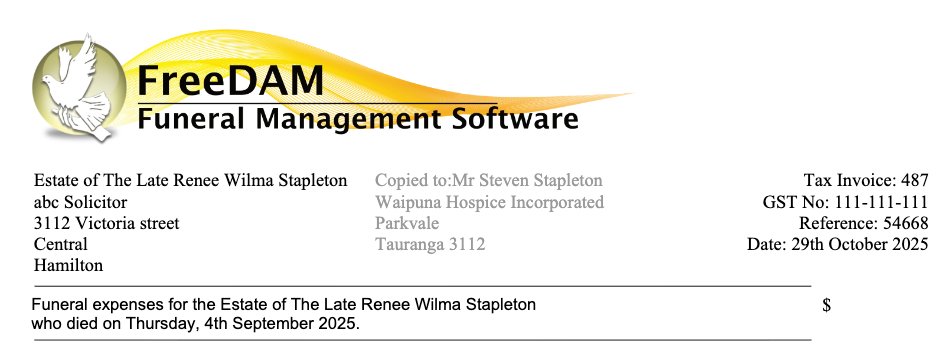
All Invoices have a primary Send to address that displays at the top of the invoice.
This is the top left hand side address.
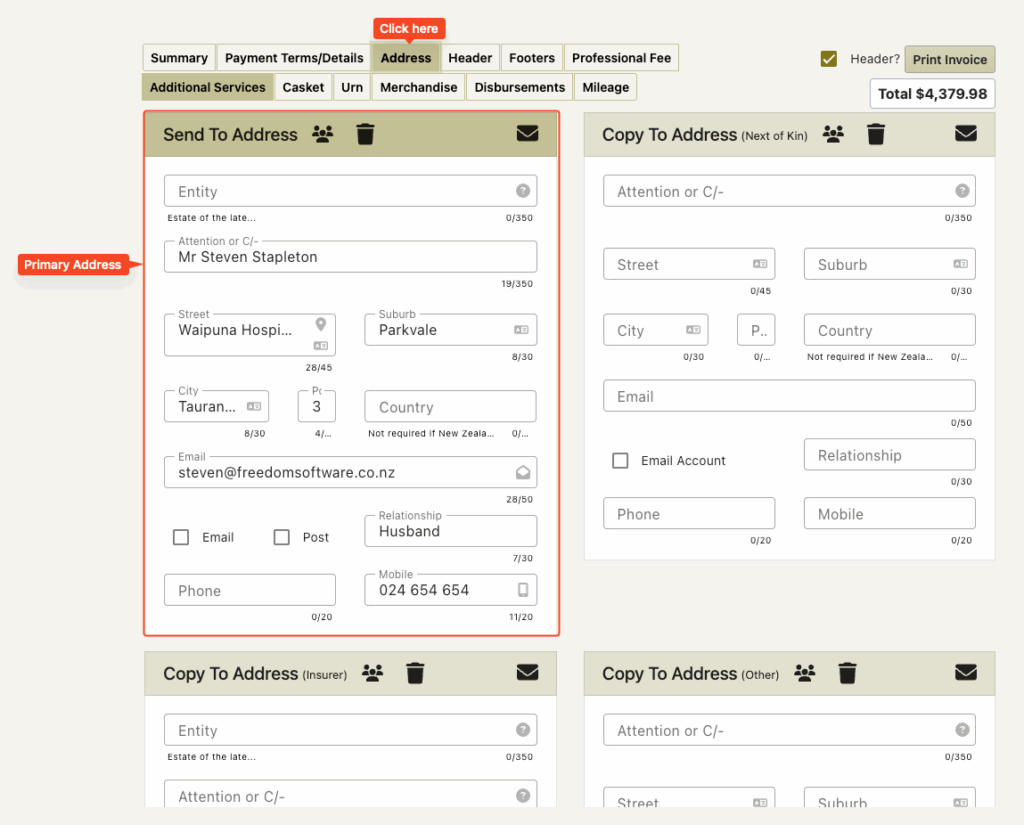
The Primary (Send To) Address
This is the address that gets filled in for you when you create an invoice.
For this address there is an ‘Entity’ field.
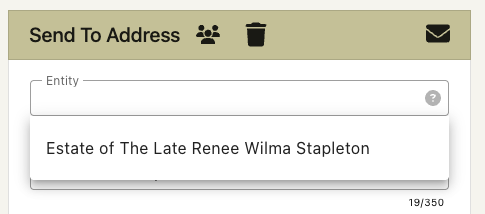
This is so you are able to correctly address invoices with not just the address but also the name of the deceased. i.e. ‘The Estate of the Late Renee Wilma Stapleton’
If this field has been filled in on the main details screen then this too will be filled in for this address.
There are settings in the software to create this text for you using codewords so that when you enter this field the correct text will be able to be selected.
Phone numbers and email
These usually do not print on the invoice but we can program these to do this if required.
If the email address is filled in then person/solicitor will be able to be picked from a list of possible people associated with the case when emailing the invoice.
Email and Post checkboxes
These are for your internal processes and indicate to others if the invoice should be emailed or posted (or both)
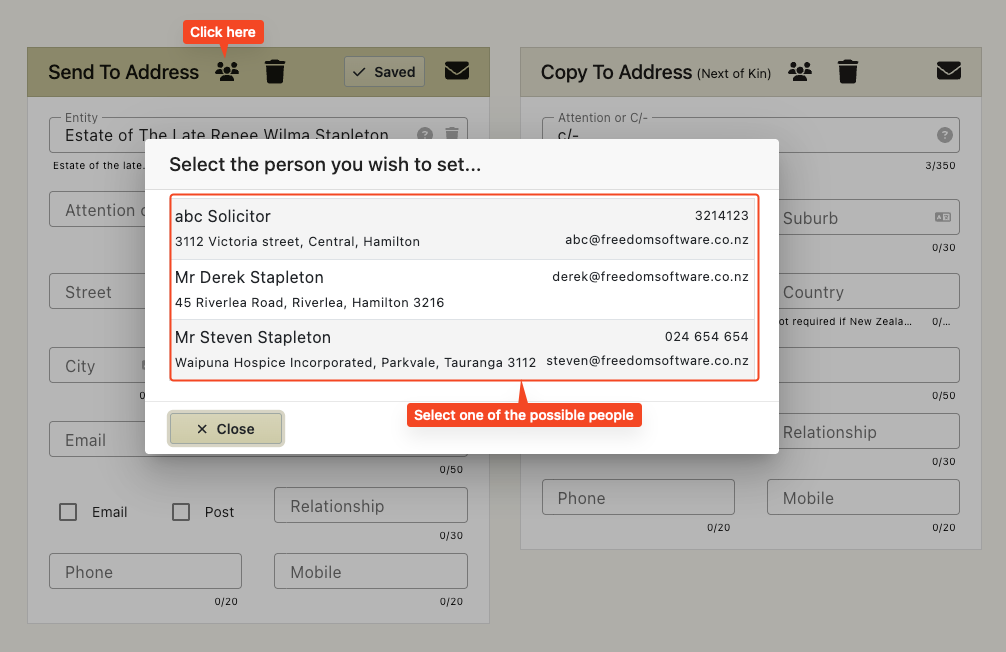
Selecting Possible People to fill the address fields
If an address field is empty, you are able to fill in the details by using a
‘Possible People’ picker.
This allows you to fill in the address from a list of possible people associated with the account. These people could be the next of kin, the account address or even someone saved as a family member against the case.
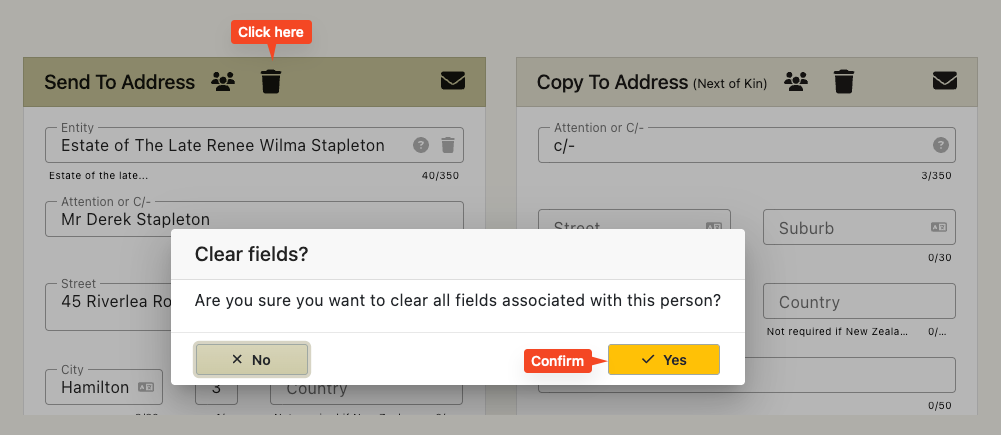
The trash can
Clicking this will simply clear the address fields.
What are all the other addresses for?
These addresses are for carbon copy addresses
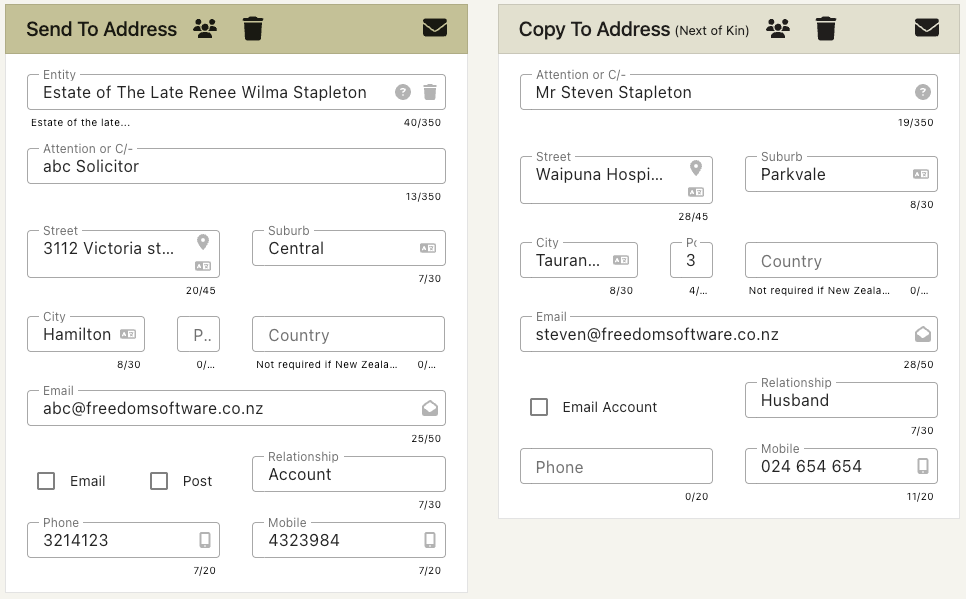
If the invoice is to be sent to a solicitor then it is possible to fill out the right hand side address with the next of kin details.
This will still address the invoice to the solicitor but it will indicate that the invoice has also been sent to the family.
In this example
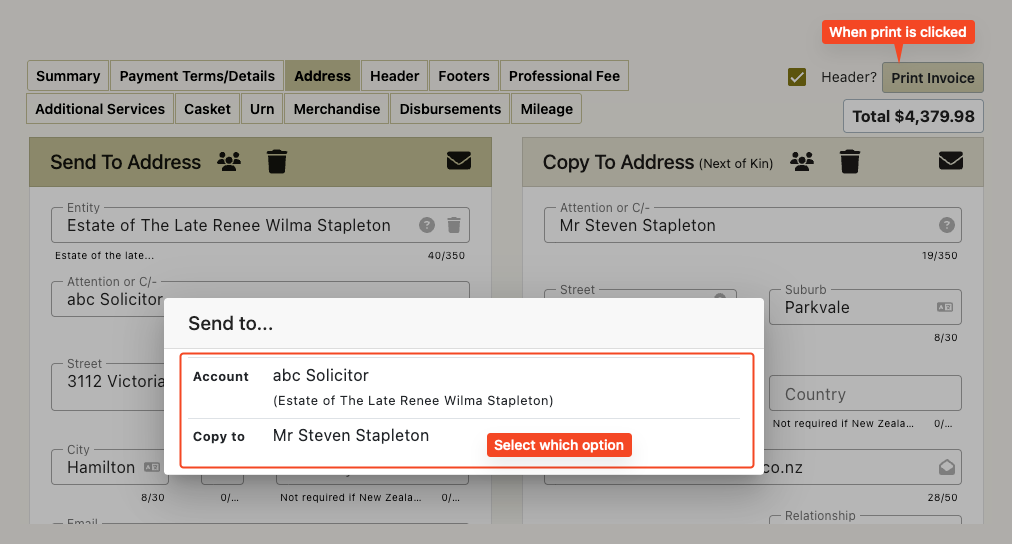
You will have an option to print the invoice to just the send to address and also print the invoice to the account address and include the carbon copy address.
Selecting the ‘Copy to’ address will display like this on the invoice.