
Mileage
This holds true for an ‘Invoice’ or ‘Estimate’ and these terms in the text are interchangeable .
The mileage section is for adding mileage to the invoice
BUT…
not show it as a separate line item (no one likes mileage fees)
What it does when printing the invoice is to roll the value of the mileage into the professional services fee.
FreeDAM keeps the sales codings separate for the professional service fees and the mileage. nice.
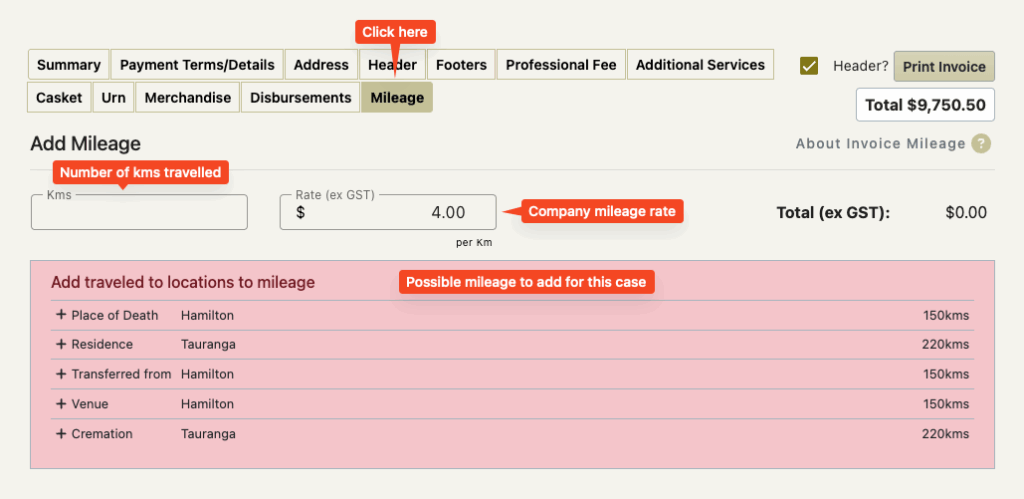
This is the summary of the invoice with mileage added of $1480.00.
Note that the professional service fee is $2500.00.
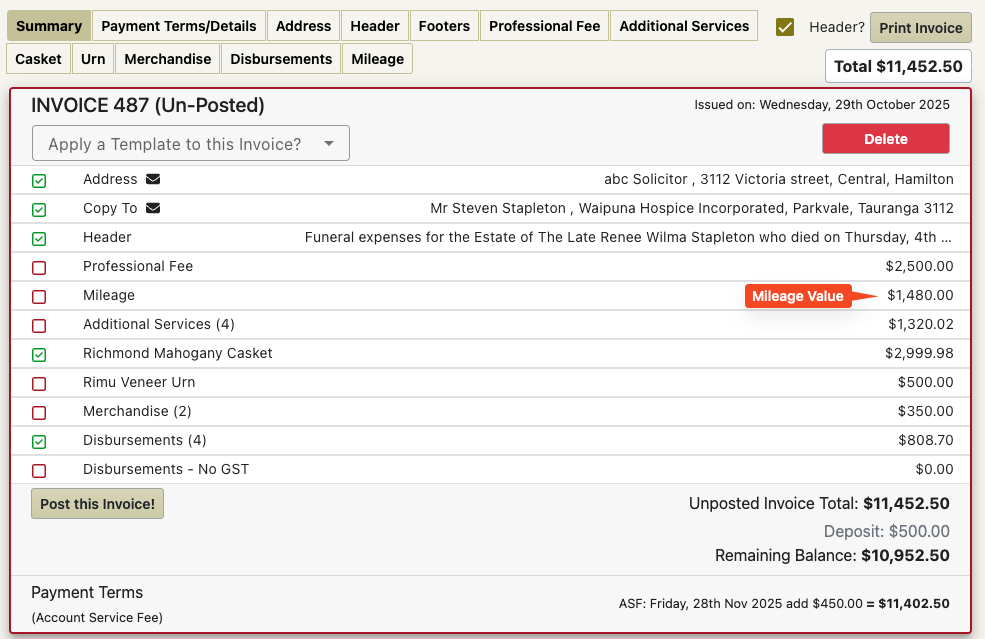
This is what the printed invoice would look like.
Note that the professional service fee on the invoice is $3980.00.
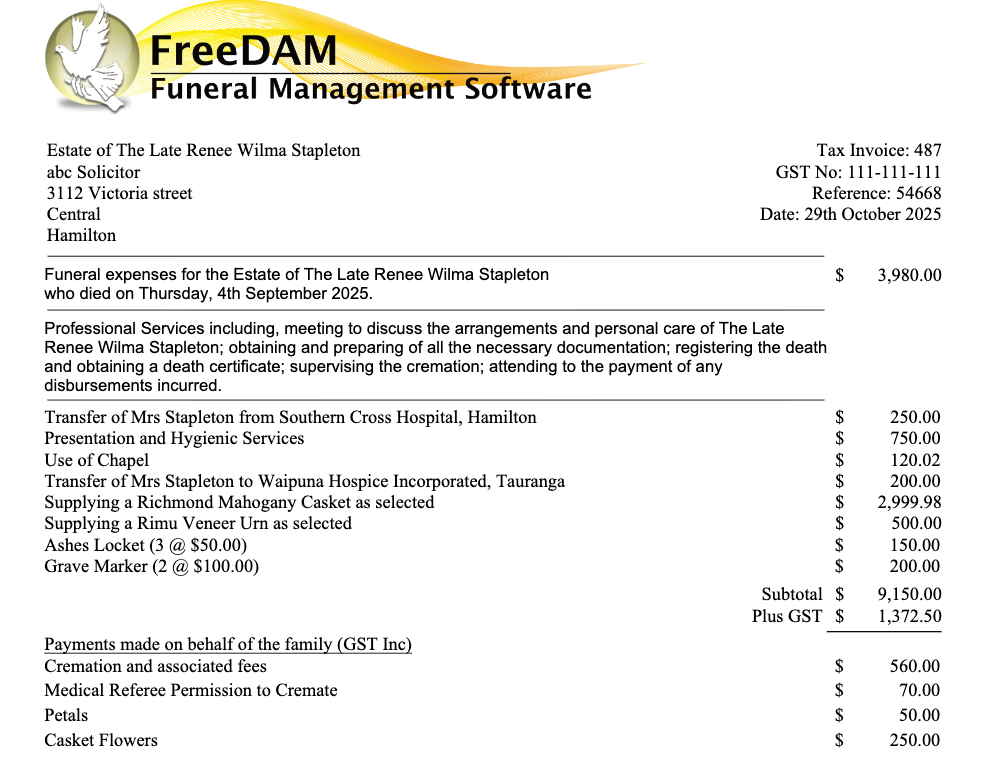
How this screen works
The value of the mileage is simply the Kilometres multiplied by the rate.
You can simply enter the number of kilometres and the calculation will be done for you.
The rate per kilometre is the rate set in the company settings – but this can be changed per case.
So what is the pink list?
This is a list of locations that you have traveled to for this case and the kilometres return.
Clicking on a line on this list will put the corresponding return list kilometres into the top kilometres box and the calculation will be done for you.
If you went to multiple locations each successive click on a line will add to the top kilometres value.
How does FreeDAM know the pink list details?
In the preferences there is a ‘Towns and Mileage’ list.
This is a list of all the common places you go to and the return mileage.
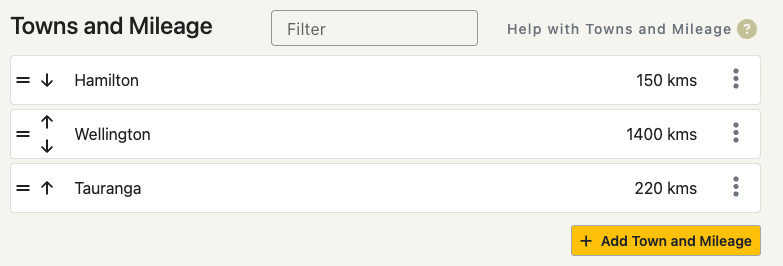
When you go to the mileage section of the invoice FreeDAM looks at the various addresses associated with the case, and constructs the pink list, from any matches in the case data and the preference list.