
The Professional Service Fee
This holds true for an ‘Invoice’ or ‘Estimate’ and these terms in the text are interchangeable .
This is where you are able to enter the description of your main professional services fee and the value of them.
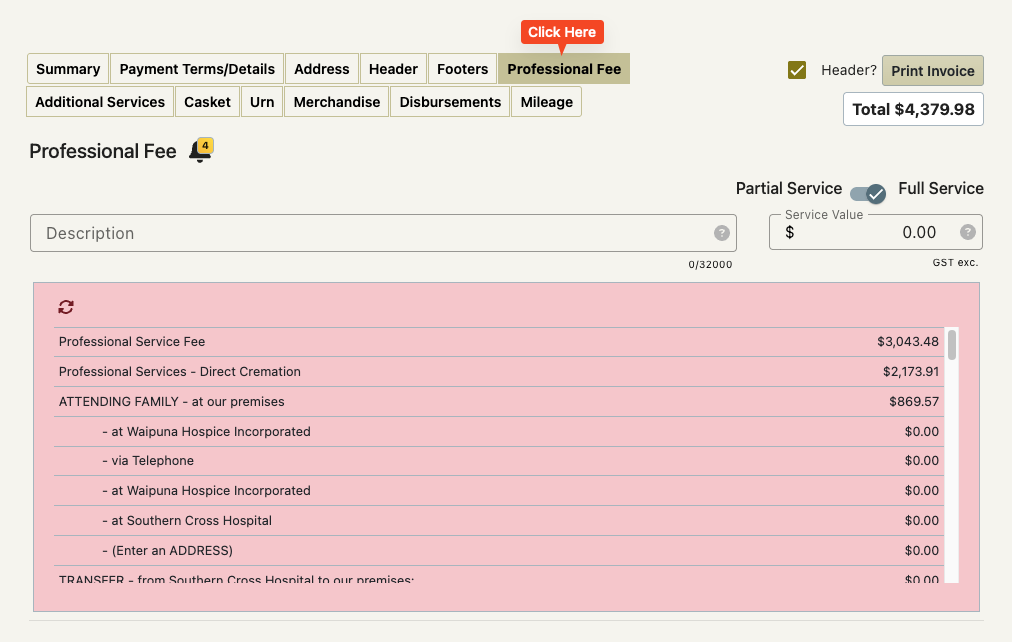
This screen also has invoice reminders on it
The Description and Service Value
This is what will be printed on your invoice.
The description can be as short or as long as required and is used to describe in depth what your main professional service fee includes.
The service value will be printed on the invoice and associated with this description.
The service value field will indicate if the value is GST inclusive or exclusive.
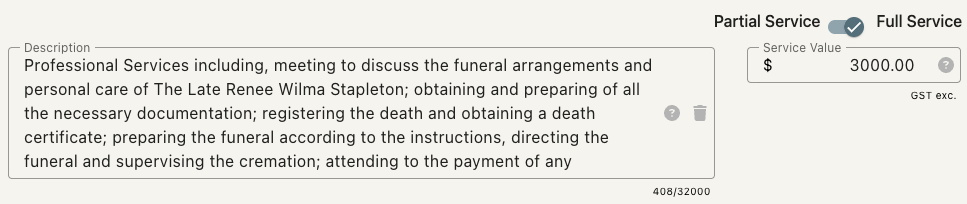
Once entered this text and service value will display on the invoice summary screen once you expand the row it is on.
How the Pink List works
This is to assist you with entering the description and service value.
Your company has settings that allow this list to be adjusted and the prices changed so this list should be populated and ready for you to use.
The lines in the pink list display a short summary of the text that will appear in the description field, along with a price. When you click on a line, the full version of the text (not shown in the list) will be inserted into the description field. The corresponding price will automatically be entered into the Service Value field.
Any further clicks in the pink list will ADD text to the description field and ADD the price to the Service Value field.
This allows you to build the description text and your service value up by clicking on the lines in the pink list that pertain to the case you are invoicing.
As you click lines in the pink list the line you clicked and any line/s above that line will disappear. This allows you to constantly be working on the top section of the pink list with this list getting smaller and smaller until you reach the end.
If a line in the list does not pertain to the case you are working on – just skip over it.
There are two common ways of setting setting your description and service value…
Line by line
Just one click
Line by line.
Your pink list looks like this and is quite long…
Attending the family $2000.00
Transfer to our premises $250.00
Mortuary Care – Embalming $800.00
Mortuary Care – Preparation only $250.00
etc
If you click on ‘Attending the family’, ‘Transfer to our premises’ and then the ‘Mortuary Care – Preparation only’ then the resulting description will be the combination of those three selections and the service value will be $3000.00.
The result may look like this depending on your company settings.

Note how the inserted text uses code words to translate date from the case so names and places are inserted automatically.
Just one click
Your pink list looks like this with a line for each of the types of services you provide..
Professional Services – Service – cremation $3500.00
Professional Services – Service – burial $4500.00
Professional Services – Direct cremation $2500.00
Professional Services – No service – burial $3500.00
You just click on the line in the list that pertains to the case and the description and service value are set to what they should be.
The result may look like this depending on your company settings.
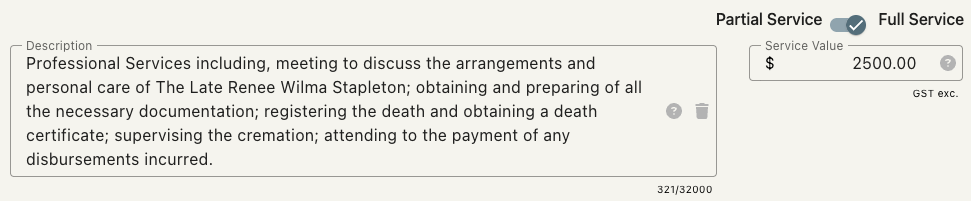
Note how the inserted text uses code words to translate date from the case so names and places are inserted automatically.
Refreshing the pink list
As you work you way down the pink list clicking lines and skipping over those that do not apply you may find that you skipped over a line that you should have added – but now that line has disappeared.
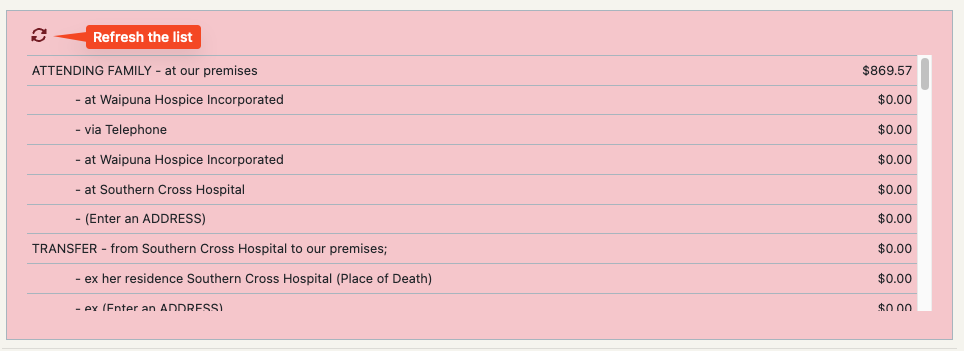
There is a refresh icon at the top of the pink list.
Clicking this will bring all the lines back again.
Partial Service / Full Service toggle
This toggles between you full service pricing and your partial service pricing.
Toggling this switch will trigger a pink list refresh with the new options/pricing in it.
Note: not all users of FreeDAM have set up partial service pricing.
Pick Professional Fee Account
This is to do wth the Sales Codes
Clicking this button will allow you to change the default sales account to another one.