Additional Services
This holds true for an ‘Invoice’ or ‘Estimate’ and these terms in the text are interchangeable .
Additional Services are line items that you can add to the invoice for services that you have provided that are not included in your main professional service fee.
Note: These fee are the fees that come to you
i.e. not fees that are paid to a third party
These may include…
- Transfers
- Embalming or mortuary procedures
- The use of hearses
- The use of your chapel or reception lounge
- etc
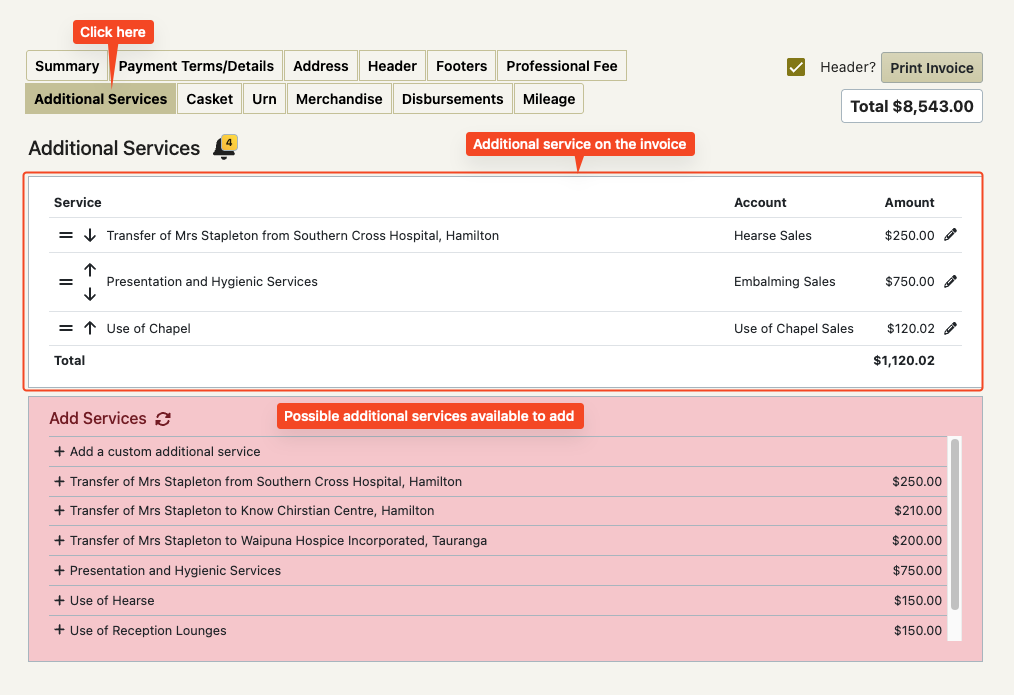
This screen also has invoice reminders on it
To add an Additional Service
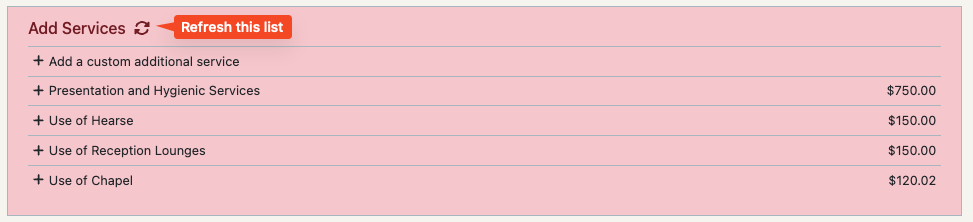
Your FreeDAM settings provide the pink list with your options and prices.
Note that these can use codewords that get translated to real case data.
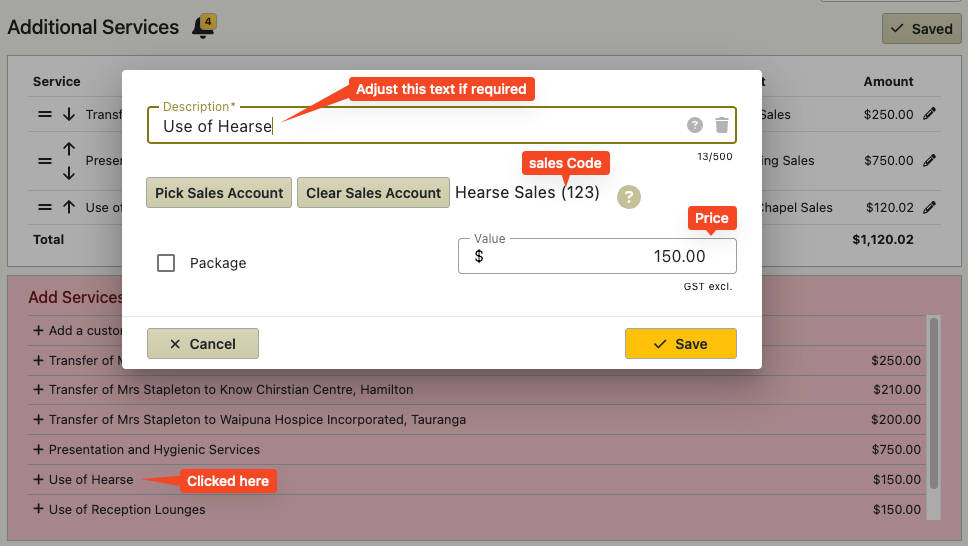
Click on a line in the pink list.
A pop up box will appear.
If required, Change the text, sales code or price and click ‘Save’
The additional service is added to the invoice.
Add an additional service that is not in the pink list
There may be circumstances where you may have to do this.
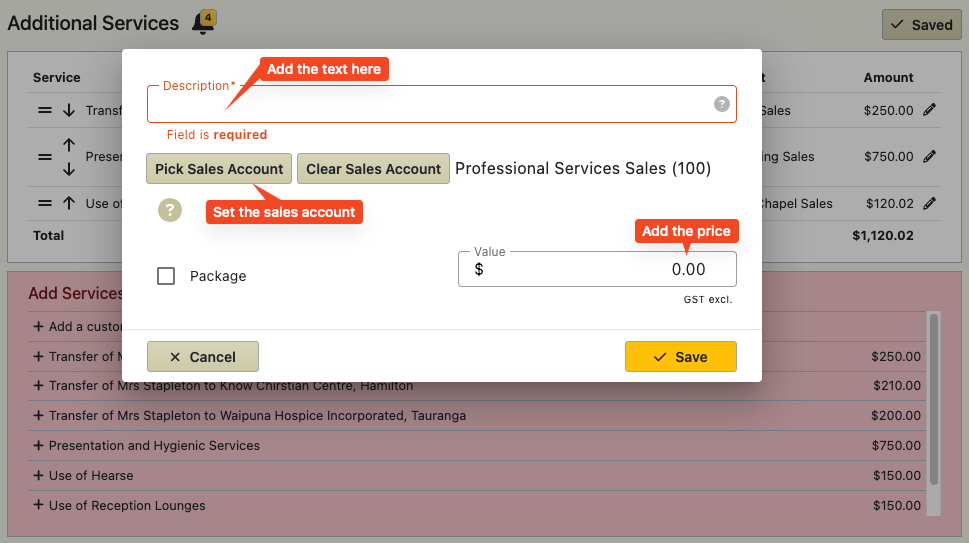
Click on the top ‘+ Add a custom additional service’ line in the list.
A pop up box will appear.
Enter the description and the price.
IMPORTANT – click the ‘Pick Sales Account’ button and chose the appropriate sales account.
Click save and the additional service is added to the invoice.
Pink List Behaviours
The pink list will always have the ‘ + add custom additional service’ at the top but as you click on items in the list all the other lines above the one you clicked will disappear. This allows you to work from the top of the list down with out having to scroll – skipping over items that do not apply to the case.
If you need to bring items no longer in the pink list back again click on the refresh icon at the top of the pink list.
Reordering Items in the White List
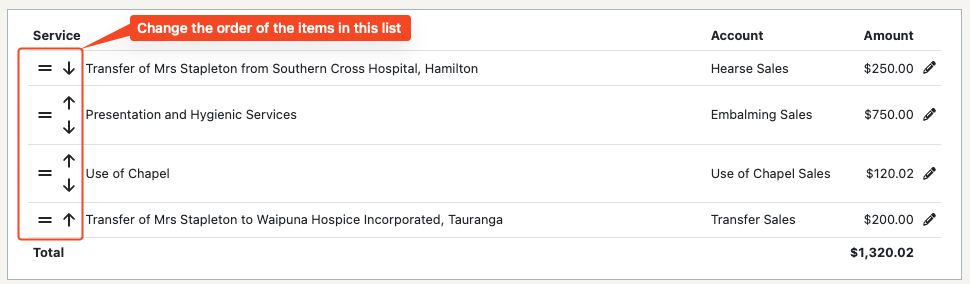
The items in the white list are the additional services that will appear on the invoice in the order that they will be printed.
You are able to change the order of these items by dragging and dropping them within the list or using the up and down arrows.
Deleting/Editing Additional Services
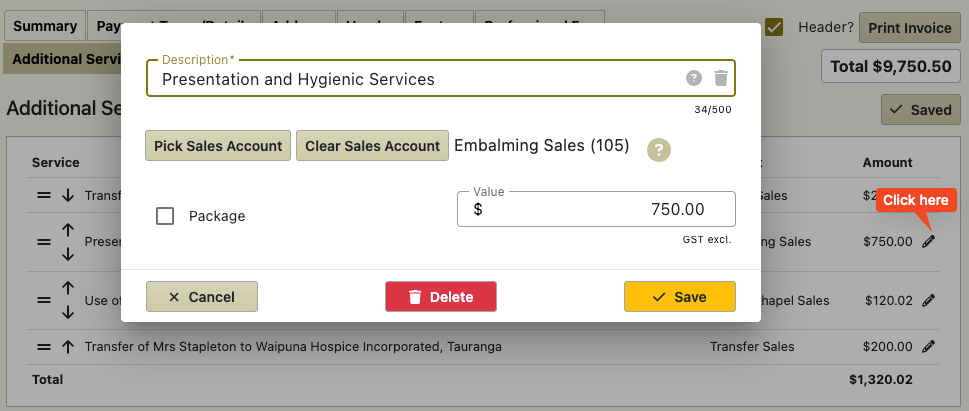
When you click on the pencil icon at the far left of the item (white box) then a pop up box will appear that will allow you to edit the additional service or delete it.