
Sending Email from your domain
FreeDAM Online normally sends emails from “<Your Company Name> noreply@freedomsoftware.co.nz” with your actual email as the reply-to address.
This means your recipients still reply to you, but some may be confused by the noreply@ – to prevent this, and keep everything under your own brand/domain FreeDAM Online can send from “<Your Company Name> your-email@your-domain“.
Before we can send from your domain/email address there is some setup required. This ensures permission is granted by the rightful owner of the domain and sets up the records required to ensure the emails don’t get marked as spam.
THIS PROCESS REQUIRES ADDING TO THE DOMAIN NAME SYSTEM (DNS) RECORDS OF YOUR DOMAIN.
NZ domains can find their technical contact via https://dnc.org.nz/whois/whois-lookup/
Australian domains via: https://whois.auda.org.au/
Step 1 – Adding your domain for your company in FreeDAM Online.
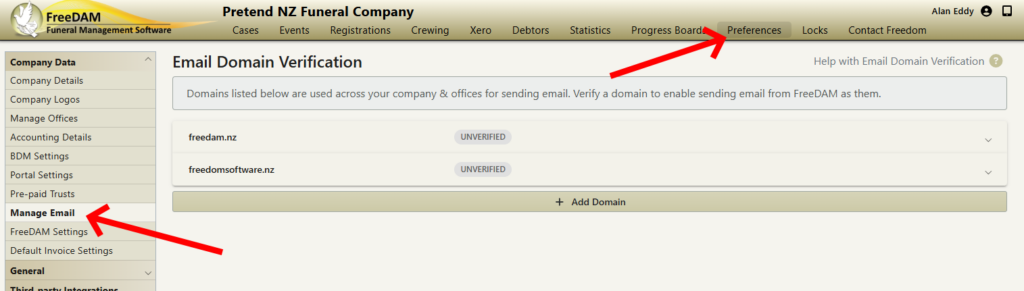
Navigate to Preferences – Company Data – Manage Email (see Setting permissions for a role if it isn’t available)
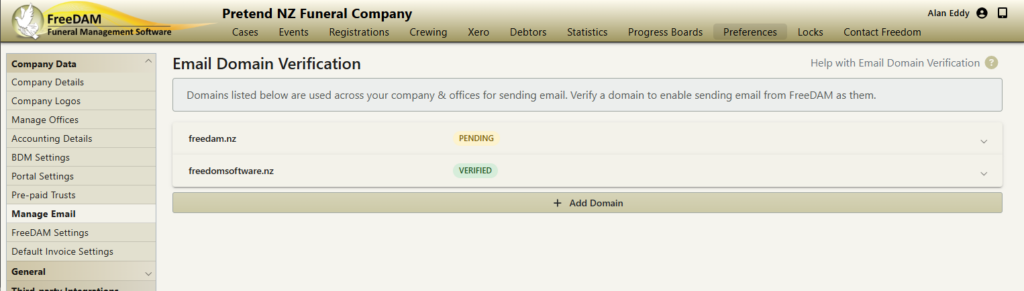
You’ll see domain names associated with your Company & Offices.
If you don’t see the domain there, click “+ Add Domain” to enter the domain name you want added.
Step 2 – Confirming ownership.
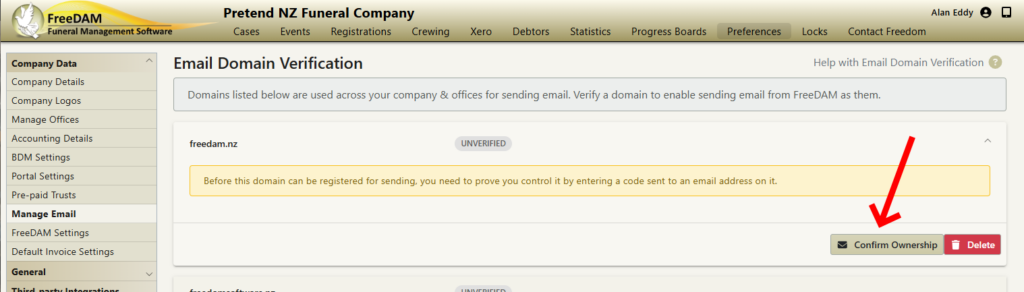
Click on the row with your domain name, then “Confirm Ownership”
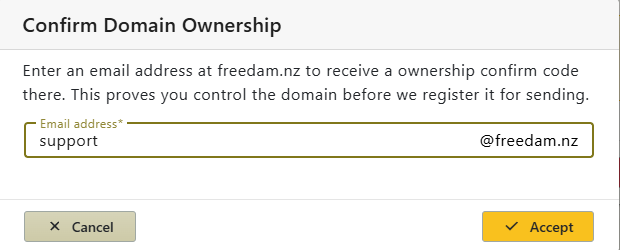
Enter the prefix of your email address on that domain – Click Accept and we’ll send a code to that email address.
Once you’ve received the email, return to this screen and click “Enter Ownership Code”
Enter the code from your email and click Accept.
Step 3 – Verification process.
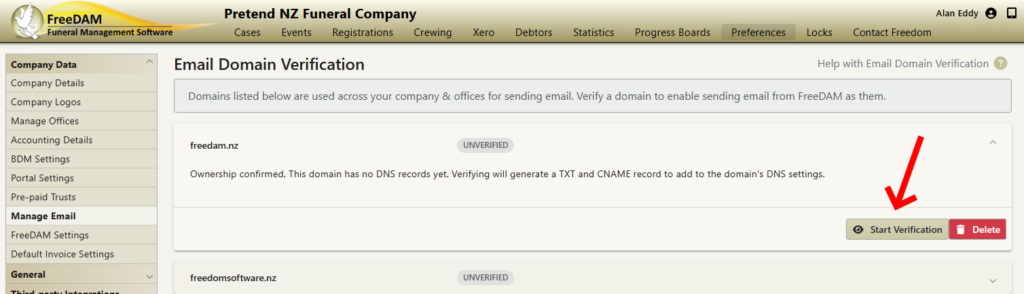
Once ownership is confirmed, click “Start Verification”
Two DNS records will need to be added to your domain host.
If you can’t complete this yourself, your website developer or IT support people should be able to assist. (Instructions for these vary too much for it to be part of this help)
The first record is a TXT one, it sets the DKIM key that allows your email recipients to check that the email was genuinely sent by the owner of your domain.
The second record is a CNAME that allows FreeDAM Online to ensure any bounced or undeliverable email messages are correctly returned to you.
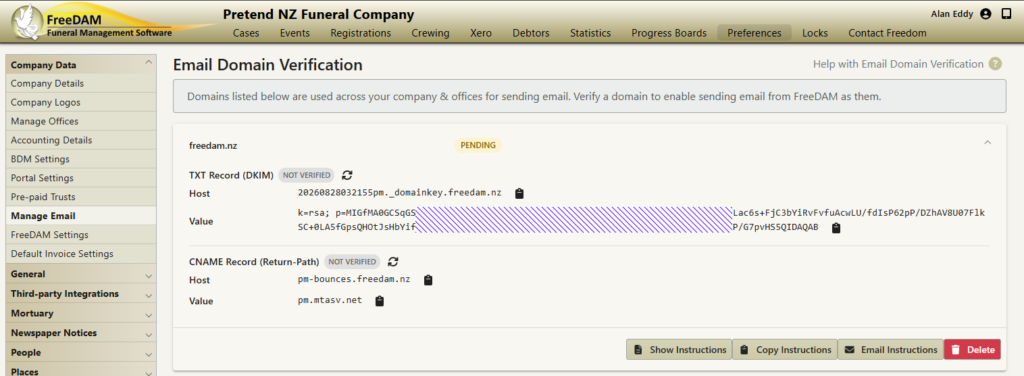
Instructions are provided along with a link to a Postmark support page that provides help for some common domain hosts.(Postmark is the service provider FreeDAM is using to send emails)
Note: the “Email Instructions” button will attempt to open your email client (e.g. Outlook) with an email ready to send to your website developer, or IT people. Alternatively, use “Copy Instructions” to copy them to your clipboard so you can paste the instructions into whatever messaging client you want to use.
Once the records are setup, you can check the verification progress by clicking on the refresh buttons next to each record. The verification process may take as little as 5 mins, or as long as 48 hours depending on the settings of your domain host.
If you are having trouble verifying DKIM, ensure the value is exactly the same in your DNS, some email clients may not select the entire line when you copy/paste.
You can check what value is being served by your host via: https://mxtoolbox.com/SuperTool.aspx
– enter your TXT Host e.g. 202609030147pm._domainkey.yourdomain.co.nz
– use the down arrow on the “Mx Lookup” button to select “DKIM Lookup”
Step 4 – Emailing clients.
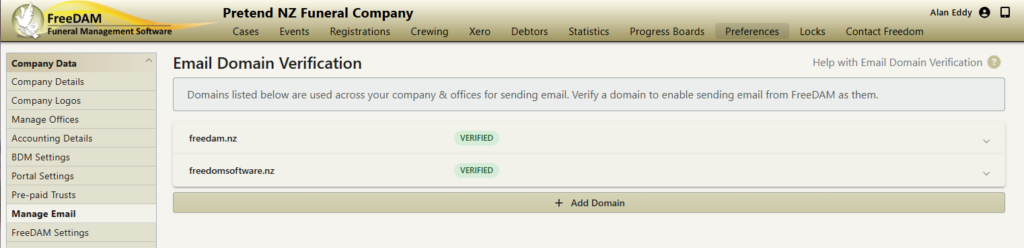
Until verification is complete, FreeDAM will continue using ‘no-reply’ as the sender address.
After the status switches to VERIFIED all emails will use the reply address as the sender/from address, IF that reply address is from one of your verified domains.

NOTE: Do not remove/delete the two DNS entries – if they are removed, email will fail to send and the status will return to UNVERIFIED.
For clients with multiple companies under the same branding/domain, you will need to repeat this in each FreeDAM Online company database – but won’t need to add more DNS records, once you’ve confirmed ownership, the verify will be confirmed by Postmark automatically.