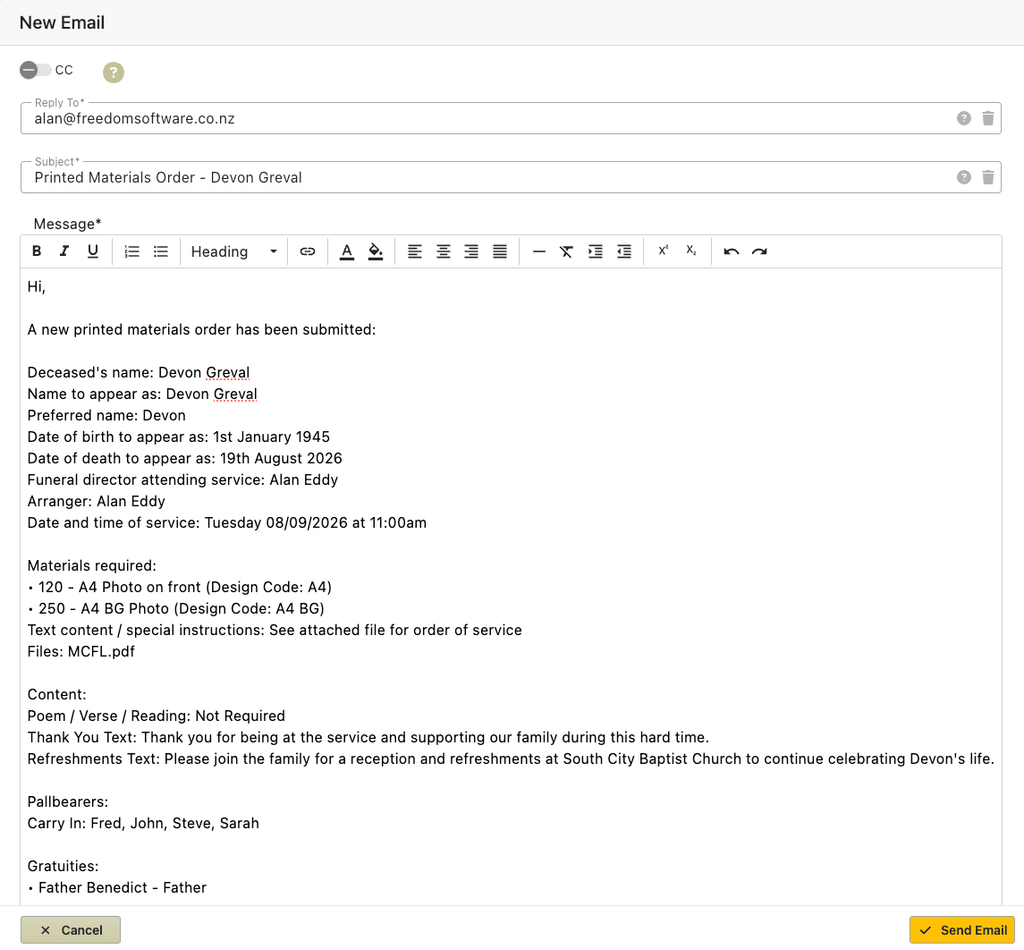
Adding Printed Materials to a case
The case’s printed materials screen allows you to load data from the case into the name to appear, first name / preferred name for printing and the dates fields.
This allows you to specify how names and dates will appear on your printed materials without changing the original data.
A drop down list next to each of the date fields allows you to specify the print format for the dates.

Any gratuities recorded against the case will display here (if tick box checked in the preferences) and you can indicate if each celebrant, organist’s etc name/s should be printed. Any gratuities entered here will also display on the gratuities page.

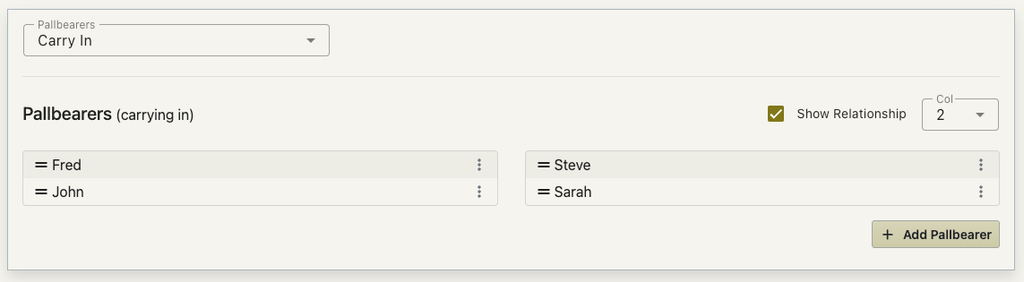
If you have ticked that the pallbeaers should be shown on this page then you are able to enter pallbearers for Carrying in, Carrying out and To the Grave. You can choose the number of columns that the pallbearers should be printed in and the order in which they should be printed. You can also enter the relationship of each pallbearers and if the relationships should be printed or not.
Adding a printed Material
You are able to add one or more printed material by ticking the available options from the required materials list.
(These are listed from the printed materials preferences)
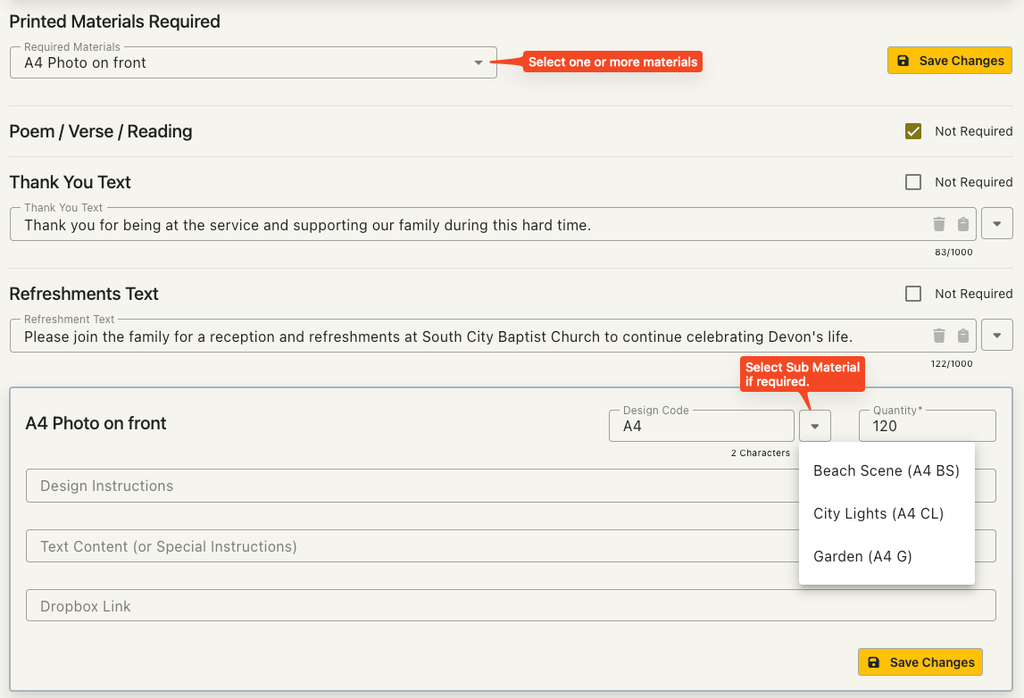
The Poem / Verse / Reading section will display for you to fill in (or tick not required)
The Thank you text and the Refreshments tex can not be specified (or tick not required)
The various options that you have set up in the preferences are able to be quickly selected from the drop down list at the end of each field
For Each Printed Material
Each printed material that is selected allows for you to enter a quantity to print, and will have the ability to add design instructions, content, a dropbox link or to add files depending on your preference settings.
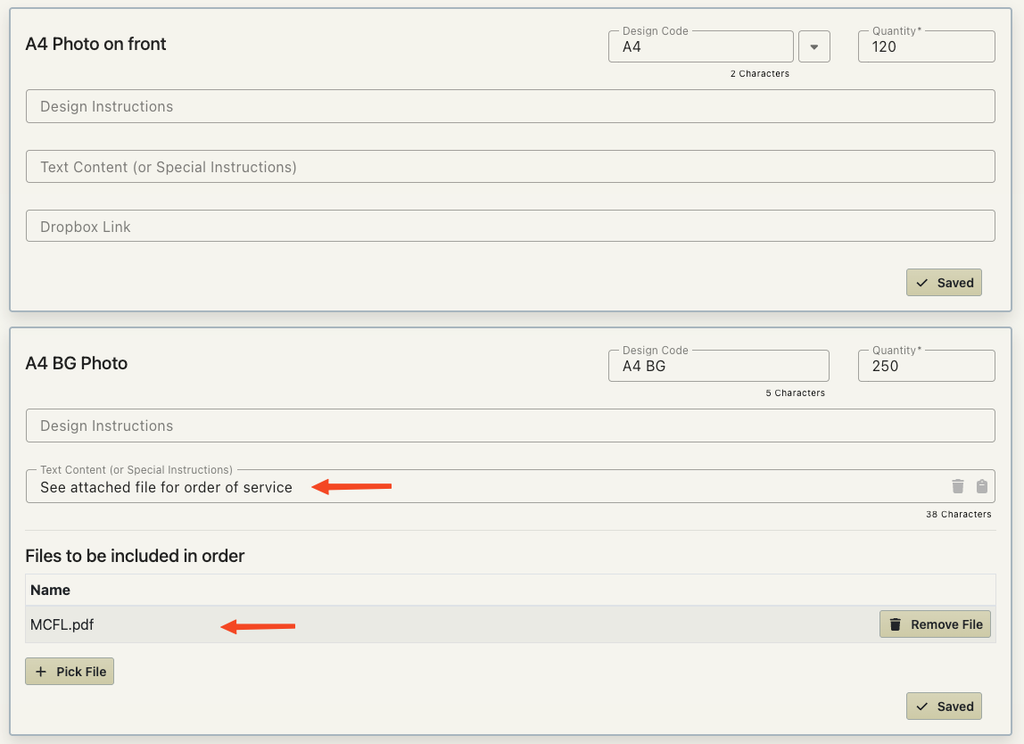
In this example the case has 2 printed materials.
One has a file attached to it that is the order of service but if required the order of services can be put into the content field.
Including Files
When you choose a file to be included with the order, FreeDAM will ask you to upload a file.
This file will be saved in the files section of the case and be displayed on this screen as a reference to it.
Responsible People
You are a able to record the people who are responsible for these materials.
This could be a family member that you need to liaise with or the person at the printing company.
Emailing the order details
When you choose to email the order details – FreeDAM will construct an email with all the details from this printed materials page.
Any Files saved with the printed materials will be already attached.