Letter Templates
You are able to set up templates for letters that allow you to easily produce a the same letter that you often send to or for your clients.
Codewords
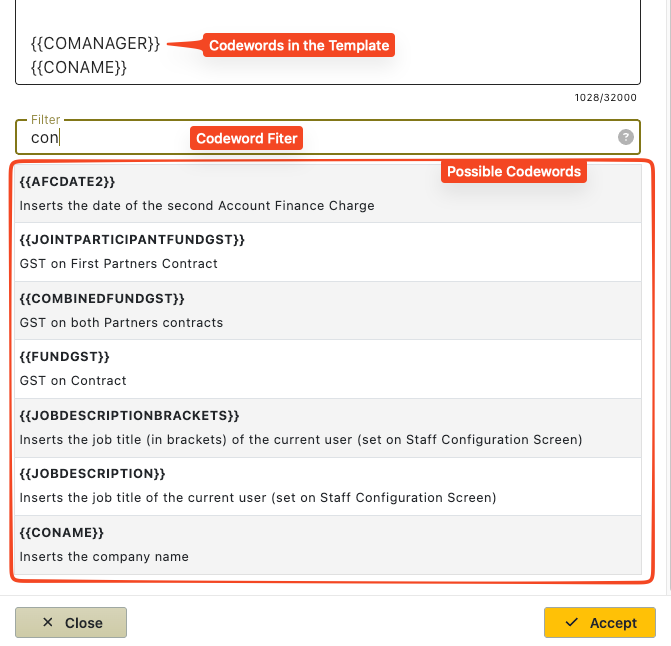
Letter Templates can use codewords that will be translated to a case’s real data.
Codewords appear in a template with {{}} around them. These will get translated for the case data when inserting a letter template for a case.
When creating a template – use the codewords button to select/insert a codeword into the template.
Remember that you use the filter(search) the codewords to find an appropriate codeword.
Template Conditions
These are conditions for which the template will show per case.
For example, you are able to have a template just for Burial cases.
When choosing to apply a template to a case that is for cremation – any burial templates will not be shown.
The types are…
- Burial – Only show for cases that are burial
- Cremation – Only show for cases that are cremation
- Repatriation – only show for repatriation cases
- Non Client Specific – these might be letters that you send to charities or celebrants.
- Pre-Need – these templates will only show for pre-paid and pre-arranged cases.
Use A5 can be ticked to always print the letter as an A5 layout rather than A4.

Creating a Template
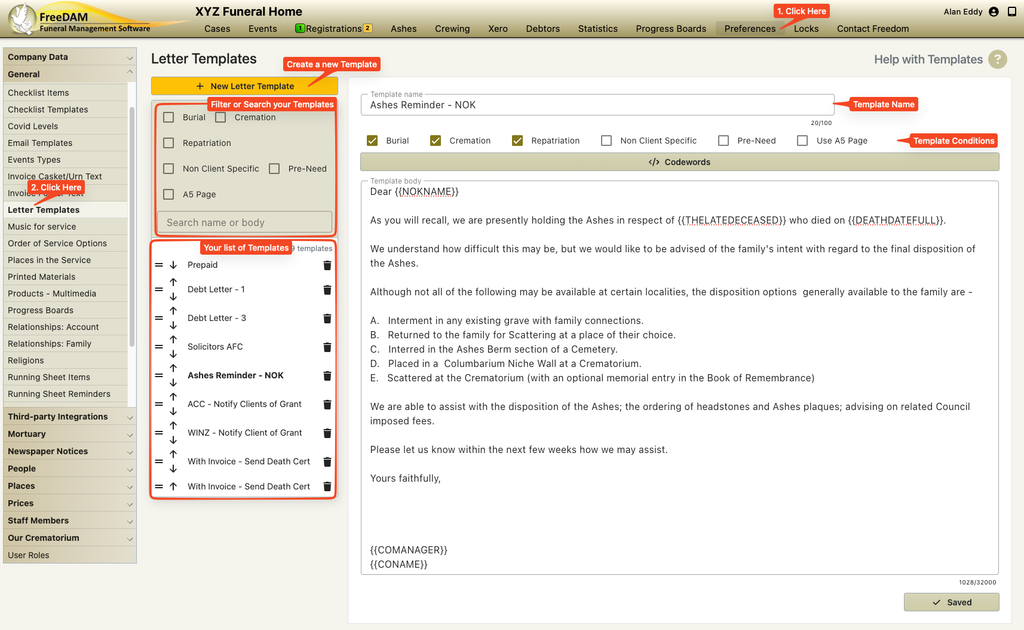
Click the ‘New Letter Template’ button at the top of the screen.
Select the condition/s that you want this template to show for.
Type the letter into the Template Body field.
Now click the codewords button and replace any text in the template with codewords that will be replaced when the template is applied to case.
Ordering the templates and filtering the side list on this screen
If you have many templates, then it might be easier to adjust them if the list of templates are restricted to a few rather than all of them.
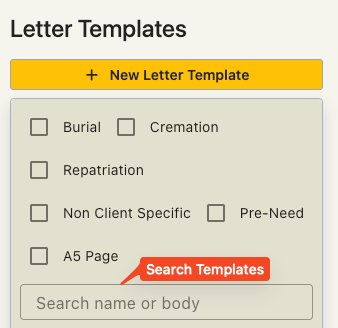
Use the checkboxes at the top of the list of templates to filter the templates.
Note – this does not delete templates or hide them from inserting them against the case. It just helps you to focus or to find a particular template that you wish to edit.
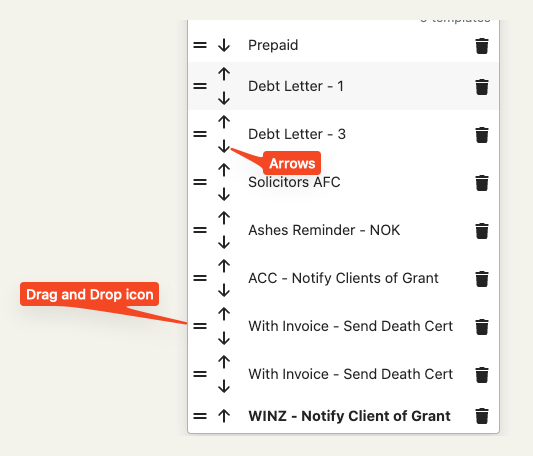
The templates in the list can be ordered.
Use the drag icon (two parallel Lines) to drag and drop templates to your preferred order in the list.
Alternatively you can use the up and down arrows.
Searching Your Templates
We have added the ability to search your templates for a particular word or phrase.
This allows you to find the template you wish to change quickly.
i.e if you type WINZ in to the search box at the top of the list then the list will filter to only show templates that have the term WINZ in the title or the body of the template.