
Creating a Code
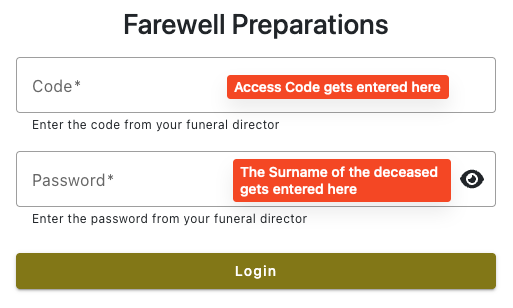
The family are required to login to the portal with a code and a username.
So before we can send them a link we need to create the code.
Just click the Generate Code button.
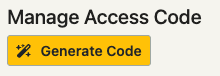
This will create a code that is specific to the case and the screen should look like this.
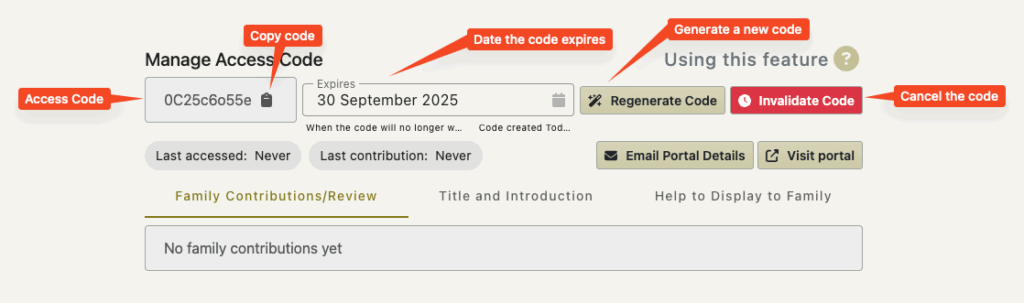
This is actually all you have to do to be able to send the family a link to the portal.
This is what the family will see.
The Expiry Date
This is when the code stops working.
i.e. the family no longer have any access
As we want to be secure so FreeDAM does not allow unlimited access.
We only allow access for a period of time.
This would usually be until the funeral or disposition.
The expiry date is set automatically for you but you can change this to whatever date you wish.
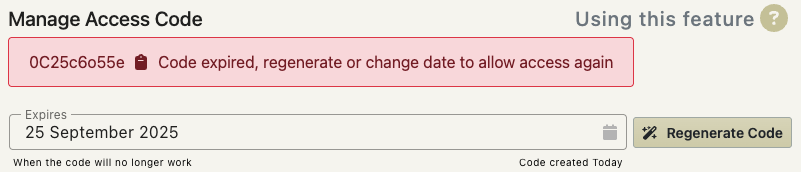
Once today is the same date as the expiry date – you will have to regenerate a new code (and resend it to the family) if you still want them to have access.
Regenerate Code
This button will create a new code for the case.
A new code cuts off all access from family members who have the previous code.
Once a new code is generated then this new code and the link need to be sent to the family again.
Why would I want to do this?
Well – it could be that a particular family members who has access to the portal now needs to have this access cut off and another member of the family should be the one entering the data. Generating a new code would allow you to send the new code to the right person and at the same time cut off access to the other family member.
Invalidate Code
This button will cut off all access to the family portal so they cannot access it anymore.
What this does is to set the expiry date to today – therefore cutting off all access.
Why would I want to do this?
If you have all the information required from the portal, and have accepted it into FreeDAM, and the funeral arrangement is complete, then we can just cut off family access to stop any further data entry.