
Setting permissions for a role
Select the role to add permissions to.
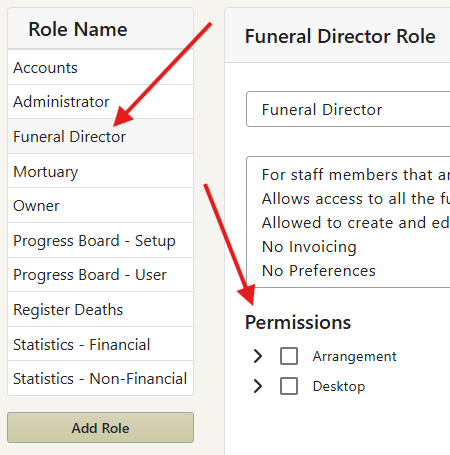
Set the role permissions by selecting/deselecting the available permissions.
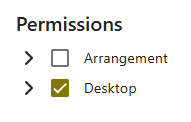
Expand or collapse the permissions with the arrows to the left.
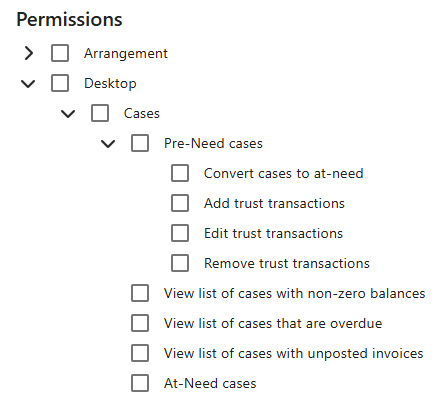
Permission Levels
User roles can have are different levels of access that are set by the permissions, below are some examples to help you understand these.
Interface Permissions
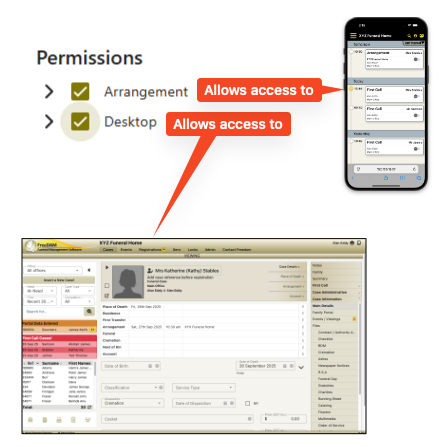
There are two different ways of using FreeDAM online, the Arrangement interface and the Desktop interface.
The access to these is controlled via the permissions set in the user roles.
Screen Permissions
The screen permissions determine which screens the user role will be able to see on the top, left and right navigation bars.
Being able to see a screen does not automatically give access to edit, save or delete information.
In this example blah blah blah
Editing Permissions
The editing permissions determine what the user role will be allowed to do on a screen.
Some companies may allow specific user roles full editing access and others may allow a user to edit and save information only, with the delete option being available to a senior staff member.
In this example blah blah blah