
The summary
This holds true for an ‘Invoice’ or ‘Estimate’ and these terms in the text are interchangeable .
The summary section of the invoice is an overview of all the details.
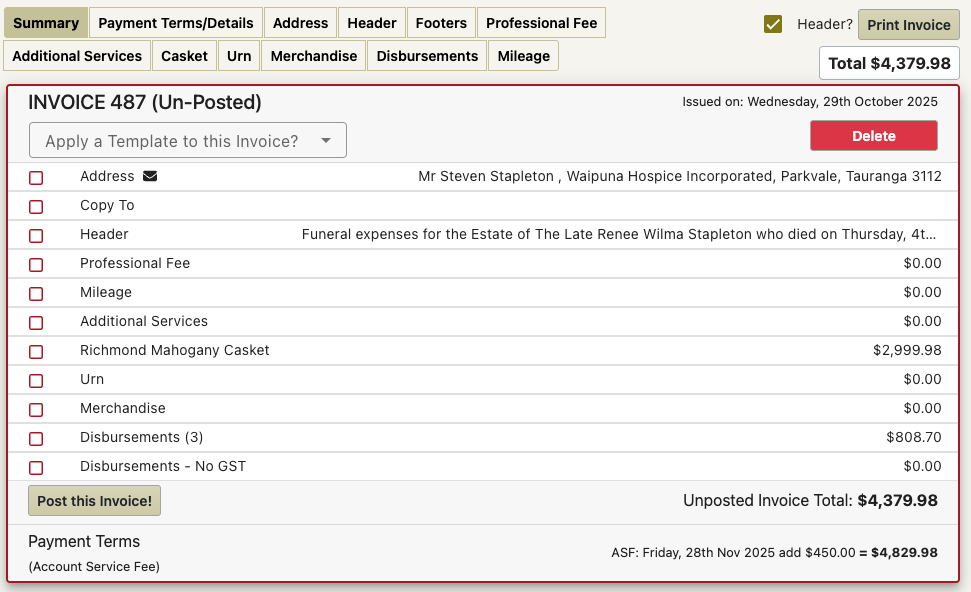
The invoice is a draft and has a red outline
(Estimates have a blue outline)
The various areas of the invoice are displayed in a list with the total values on each section displayed as well as the invoice total.
Clicking on the lines on the summary
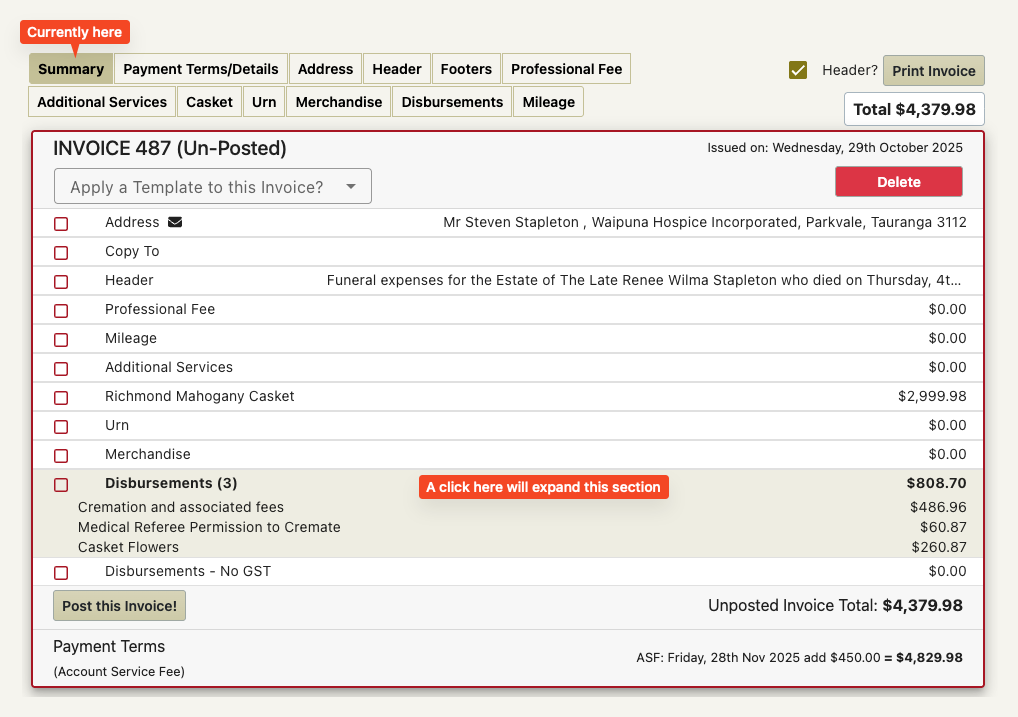
Clicking on a line in the summary will expand that section for you to see the details.
This is for checking the entered details. To change any items in the section you will need to go to that section of the invoice (top buttons).
The check boxes
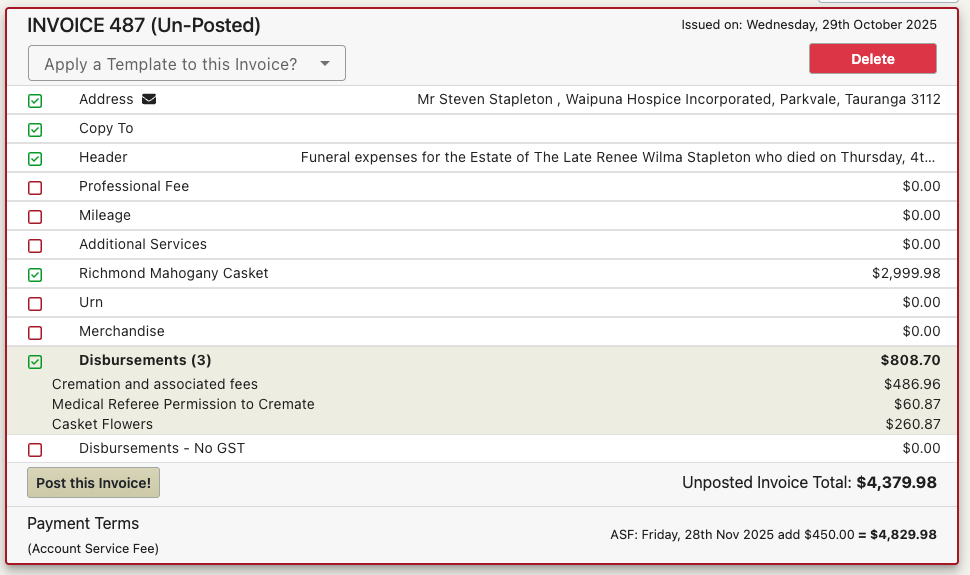
Next to each listed section on the summary are check boxes.
These are for you to check off once you are happy that the section is complete.
This is a way to ‘keep your place’ if you are interrupted while constructing an invoice.
These checkboxes have no other function and do not impact the values or printing of the invoice whatsoever.
Applying a Template to an invoice
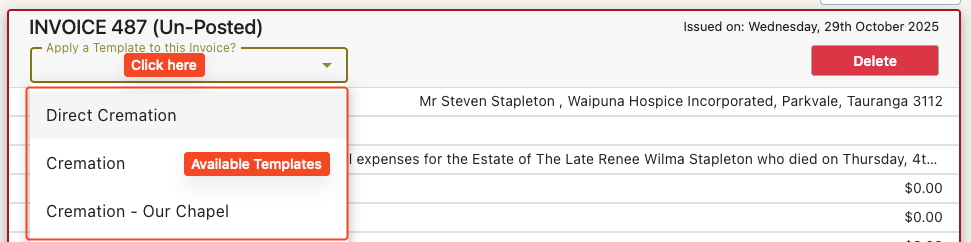
If you have invoice templates set up there will be a drop down list of templates that you are able to apply to the invoice.
Invoice templates can be set up for burial, cremation and repatriation.
If the case is a cremation case then only the cremation invoice templates will be available for selection.
If you apply a template to the invoice all the sections (except the addresses and payment terms) will be replaced with the setting from the selected templates.
A confirmation pop up box will ensure this is not done accidentally.
Deleting an Invoice
This is quite simple – there is a red delete button on the right hand side of the summary.
Note this is controlled by permissions – so this might not be there for you.
A confirmation pop up box will ensure this is not done accidentally.
Note – finalised invoices CANNOT be deleted
Invoices that have been sent to Xero CANNOT be deleted
Posting this Invoice button
Clicking this button (bottom left of the summary) will finalise (post) the invoice.
Note this is controlled by permissions – so this might not be there for you.
- This should be done all values on the invoice have been entered correctly
(Including the text descriptions) - The address and payment terms should be checked and correct.
- The issuing date should be correct as this affect s the payment terms.
- Any deposits received should be entered.
We recommend that an invoice should be printed and given/sent to the family/solicitor before the invoice gets posted.
Posted invoices can no longer be edited.
Posted invoices have a green outline.
Posted invoices appear in the transaction list with their value becoming part of the account balance
Important!
Posted invoices can be uploaded to Xero and this might be done by someone else within the company.
i.e. If the invoice is posted then it can be assumed that everything has been checked and is correct and the invoice may be sent to Xero.