
The Urn
This holds true for an ‘Invoice’ or ‘Estimate’ and these terms in the text are interchangeable .
This area of the invoice allows you to adjust the details of the urn.
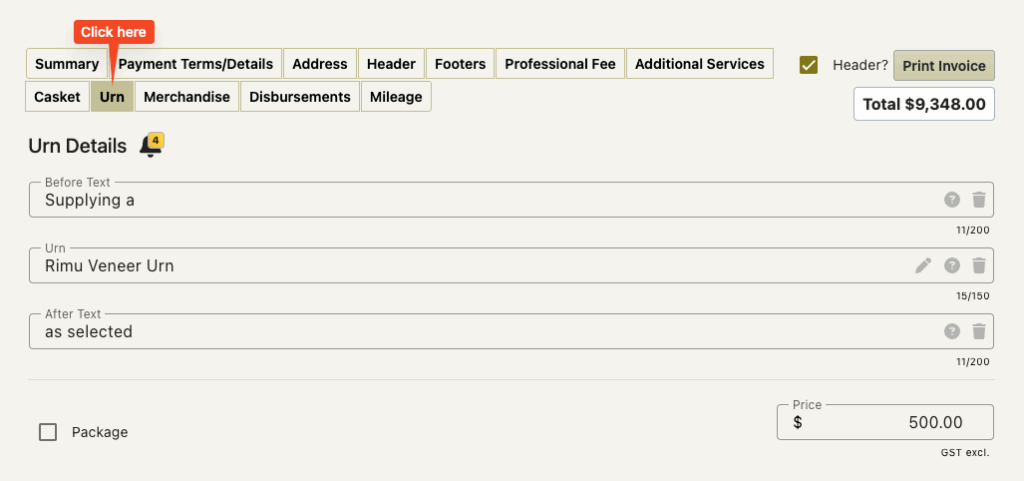
This screen also has invoice reminders on it
The Before Text and After Text
This allows you to add text before and after the name of the urn on the invoice.
Rather than casket line on the invoice looking like this
Richmond Mahogany Urn $500.00
the casket line on the invoice would look like this
Supplying a Richmond Mahogany Urn as selected $500.00
There are FreeDAM default settings for these.
You may find that these are already set for you
or it may be that your company prefers these to be empty.
You can freely type in these fields or chose from a list of predetermined options that are provided from your preferences.
The Urn Name
FreeDAM has two names for caskets/coffins
An Internal Name
This is the name used on your main details screen.
An Invoice Name
This the name that is used on the invoice.
The reason we do this is that this allows you to use in FreeDAM urn names that the whole team are used to referring to, like
‘Square Rimu’ or ‘ST-123 Tube’
but have these appear on the invoice in a much more family friendly way like
‘Rimu Urn’ or ‘Flower Printed Scatter Tube’
The urn name on this screen will be the invoice name for the urn and may differ from the name of the urn elsewhere in FreeDAM.
You are able to change the urn on this screen.
Click the trash can at the end of the urn field and then the little pencil icon to select from a list of your urns.
(or you can just type into the field)
Sales Coding
There is no way of changing the sales code for the urn.
The values will be sent to the code set in the company settings.