
Creating a new Invoice
Before creating an invoice for a funeral case please ensure the following information is filled in on the main details screen.
- Disposition type
- Place of funeral
- Place of burial or cremation
- Place of death and date of death
- Who the account is going to
- The casket / coffin and the price
- The urn and the price
The reason for this is…
- The header and many of the service options use this information to construct personalised invoice text
- The invoice data is stored in a separate table within FreeDAM and the casket / coffin, urn and account details will be transferred to this table.
If you do not have the casket / Coffin, urn or account details filled in before creating the invoice you will have to fill it in on the invoice AND then fill it in on the main details screen also.
These are separate as if the account details change for a case after the invoice has been sent then the invoice will still have the original address on it.
Creating a new invoice
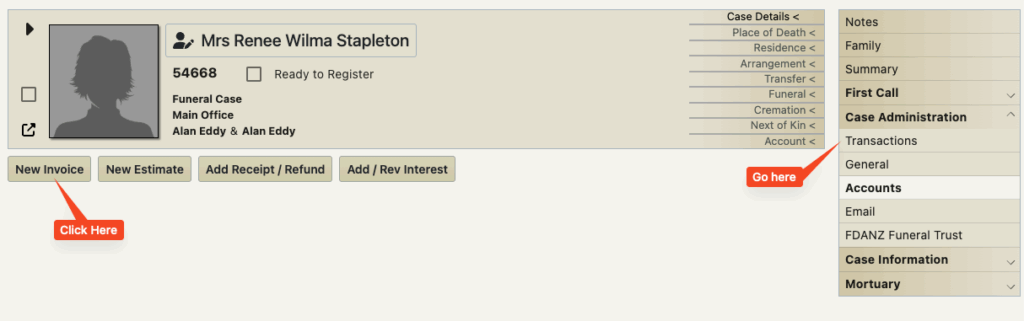
Go to the case administration – transactions section of FreeDAM and click the ‘New Invoice’ Button.
A new ‘Unposted’ (draft) invoice is created and will display like this.
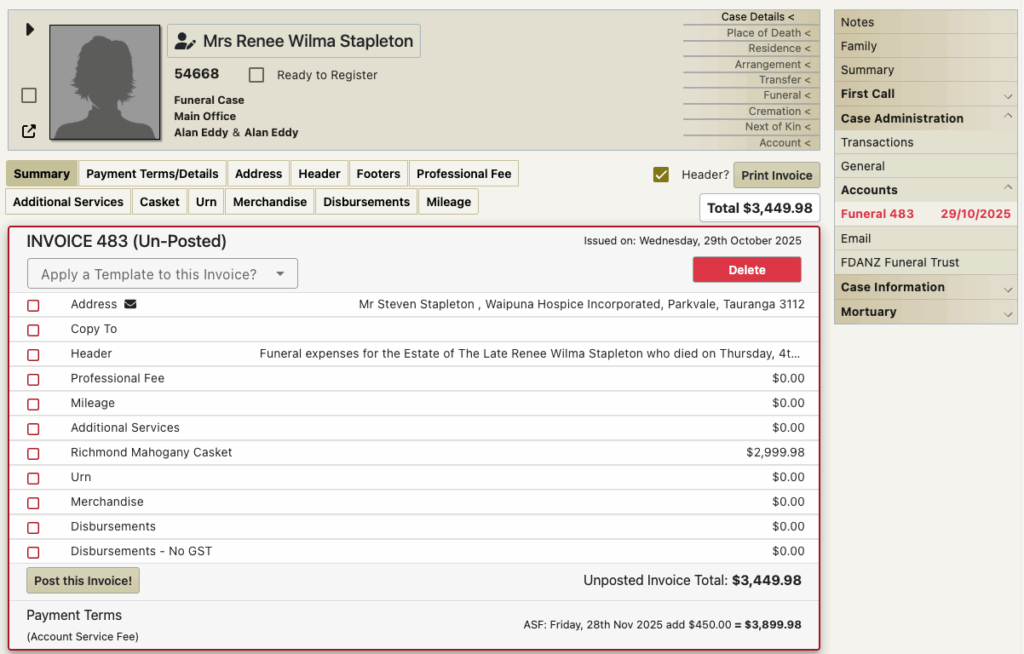
So what has happened?
- An invoice has been created for this case.
- The invoice has been given a unique number
This is NOT the case reference number and cannot be changed by users. - In the above image you can see that the software has taken you to the invoice and is displaying the summary screen.
- FreeDAM has also added the account address, the header, the casket / coffin and urn if there is one.
- The invoice is outlined in red – this means that it is an ‘unposted’ (draft) invoice.
- The menu on the right displays the invoice in red under an accounts section
(if there are multiple invoices then there will be multiple menu items)
You are now able to fill in the specific services, fees and disbursements on the invoice.